Igor Aleksandrov
Thursday, September 12, 2024 | 5 minutes
Harbor - self-hosted registry with cloud OIDC authentication (Docker compose deployment)
Intoduction
Harbor is an open source registry that bolsters artifact security with advanced policies and role-based access control. It performs comprehensive vulnerability scans on images and verifies their authenticity through digital signatures. As a CNCF Graduated project, Harbor offers strong compliance, high performance, and seamless integration, allowing for consistent and secure management of artifacts across cloud-native platforms like Kubernetes and Docker.
Harbor Features
Cloud Native Registry
Harbor supports both container images and Helm charts, making it an ideal registry for cloud-native environments, including container runtimes and orchestration platforms.
Role-Based Access Control
Harbor employs role-based access control (RBAC), allowing users to access different repositories through ‘projects.’ Permissions can be customized for images or Helm charts within a project.
Policy-Based Replication
- Replication: Images and charts can be replicated (synchronized) across multiple registry instances based on policies using filters (repository, tag, and label).
- Automatic Retries: Harbor automatically retries replication in case of errors.
- Use Cases: This feature supports load balancing, high availability, and multi-datacenter deployments in hybrid and multi-cloud scenarios.
Vulnerability Scanning
Harbor regularly scans images for vulnerabilities and enforces policies to prevent the deployment of vulnerable images.
LDAP/AD Support
Harbor integrates with enterprise LDAP/AD for user authentication and management. LDAP groups can be imported into Harbor and assigned permissions to specific projects.
OIDC Support
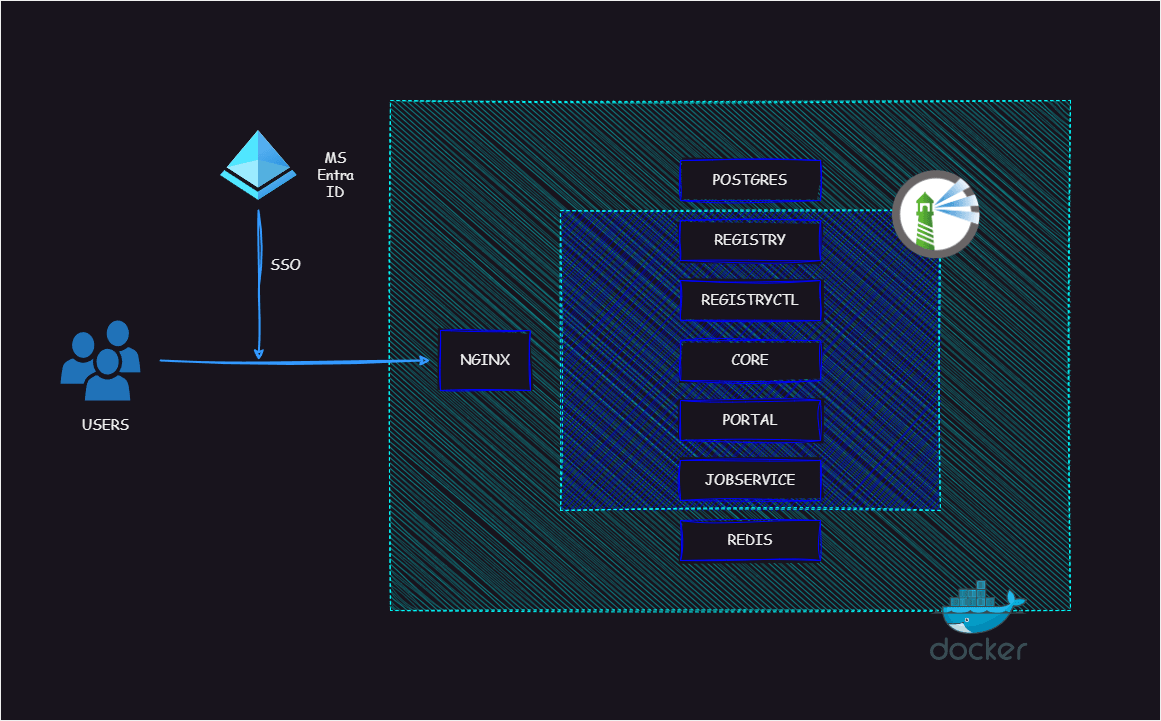
Harbor supports OpenID Connect (OIDC) for verifying user identities through external authorization servers or identity providers. Single sign-on (SSO) can be enabled for accessing the Harbor portal.
Image Deletion & Garbage Collection
System administrators can run garbage collection jobs to delete unreferenced images, dangling manifests, and blobs, freeing up space periodically.
Notary
Harbor supports signing container images using Docker Content Trust (leveraging Notary) to guarantee authenticity and provenance. Policies can also be set to prevent the deployment of unsigned images.
Graphical User Portal
Users can easily browse, search repositories, and manage projects through Harbor’s intuitive graphical user interface.
Auditing
All repository operations are tracked and logged for auditing purposes.
RESTful API
- APIs: RESTful APIs are available for administrative tasks and integration with external systems.
- Swagger UI: An embedded Swagger UI is provided for exploring and testing the API.
Easy Deployment
Harbor can be deployed using Docker Compose, Helm Charts, or the recently added Harbor Operator.
Deploy Infrastructure
In the article we will use Docker compose as platform for infrastructure. As base we use bitnami images. Additionaly, you need a Microsoft EntraID tenenant for OAuth authentication.
extadmin.space demo files you can find here
Installation Harbor server
Create project folder and copy demo files form repository
Ensure that variables in *.env files are defined correctly, with particular attention to ensuring that passwords are identical wherever they appear.
Pay special attention to
CORE_KEY=param in core.env, it must be a 16-character-long phrase.Execute
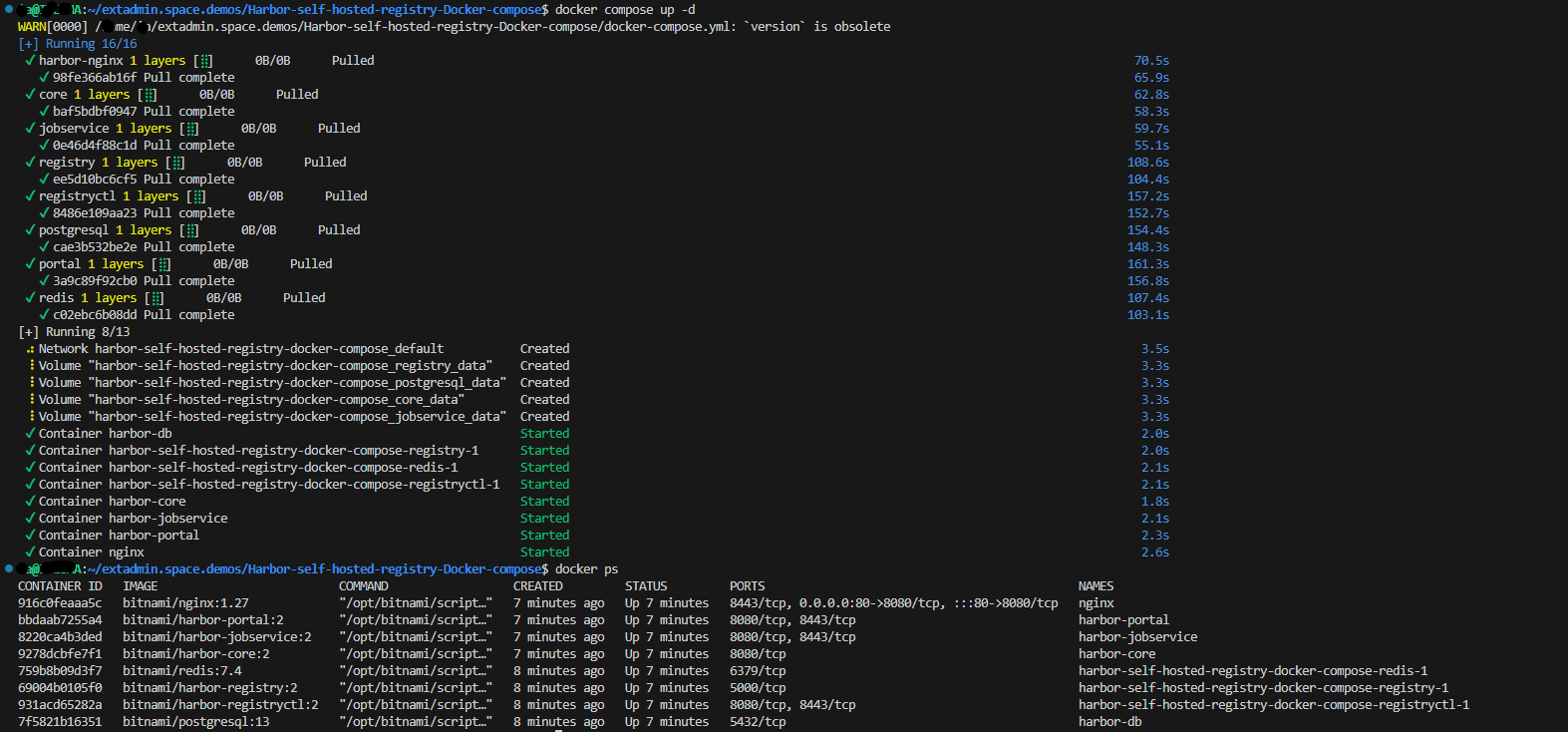
docker compose up -dto deploy Harbor server and surrondings
docker-compose.core.yaml
# Copyright Broadcom, Inc. All Rights Reserved.
# SPDX-License-Identifier: APACHE-2.0

version: '2'

services:
  registry:
    image: docker.io/bitnami/harbor-registry:2
    env_file:
      - ./env/registry.env
    volumes:
      - registry_data:/storage
      - ./config/registry/:/etc/registry/:ro
  registryctl:
    image: docker.io/bitnami/harbor-registryctl:2
    env_file:
      - ./env/registryctl.env
    volumes:
      - registry_data:/storage
      - ./config/registry/:/etc/registry/:ro
      - ./config/registryctl/config.yml:/etc/registryctl/config.yml:ro
  postgresql:
    image: docker.io/bitnami/postgresql:13
    container_name: harbor-db
    env_file:
      - ./env/postgresql.env
    volumes:
      - postgresql_data:/bitnami/postgresql
  core:
    image: docker.io/bitnami/harbor-core:2
    container_name: harbor-core
    depends_on:
      - registry
    env_file:
      - ./env/core.env
    volumes:
      - core_data:/data
      - ./config/core/app.conf:/etc/core/app.conf:ro
      - ./config/core/private_key.pem:/etc/core/private_key.pem:ro
  portal:
    image: docker.io/bitnami/harbor-portal:2
    container_name: harbor-portal
    depends_on:
      - core
  jobservice:
    image: docker.io/bitnami/harbor-jobservice:2
    container_name: harbor-jobservice
    depends_on:
      - redis
      - core
    env_file:
      - ./env/jobservice.env
    volumes:
      - jobservice_data:/var/log/jobs
      - ./config/jobservice/config.yml:/etc/jobservice/config.yml:ro
  redis:
    image: docker.io/bitnami/redis:7.4
    env_file:
      - ./env/redis.env
  harbor-nginx:
    image: docker.io/bitnami/nginx:1.27
    container_name: nginx
    volumes:
      - ./config/proxy/nginx.conf:/opt/bitnami/nginx/conf/nginx.conf:ro
    ports:
      - '80:8080'
    depends_on:
      - postgresql
      - registry
      - core
      - portal
volumes:
  registry_data:
    driver: local
  core_data:
    driver: local
  jobservice_data:
    driver: local
  postgresql_data:
    driver: local
networks:
  harbor_net:
Attention! It will expose 80/TCP port, if you need use different ports you have to change their in docker-compose.yaml. Moreover, if you want to have extrnal access to your self-hosted harbor server, configure your firewall.
Set up harbor
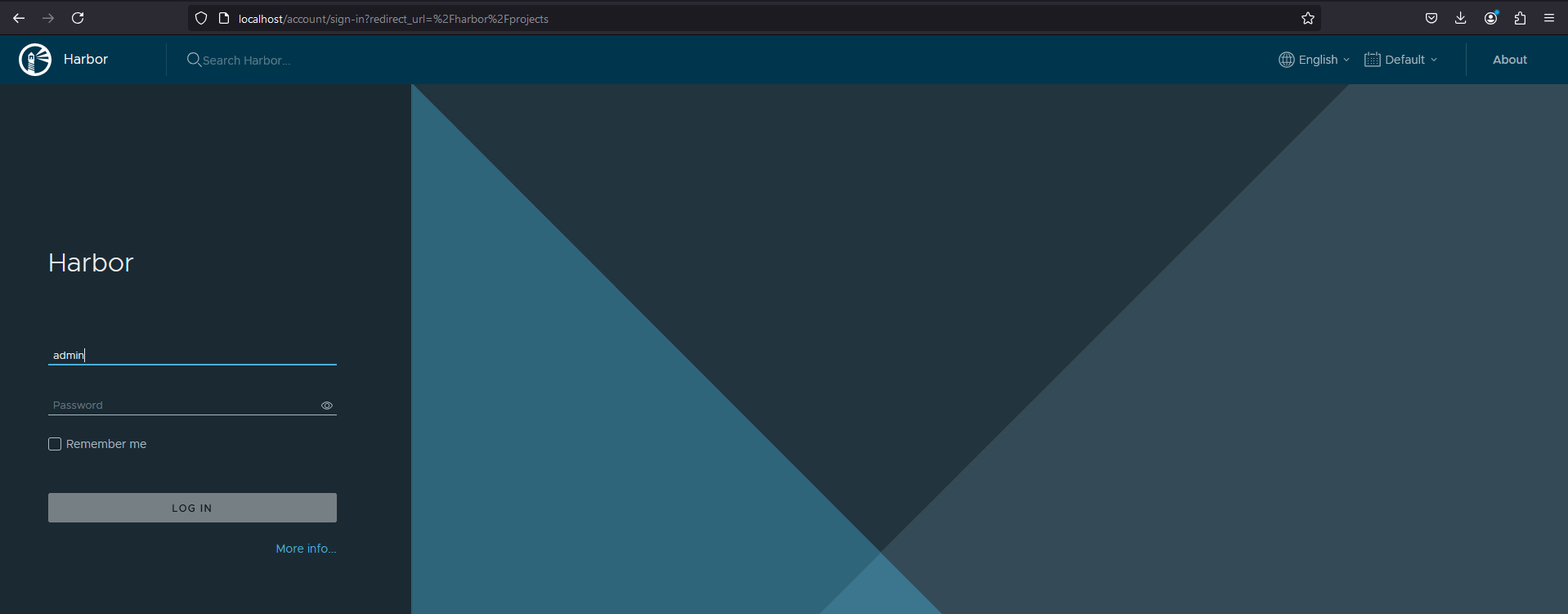
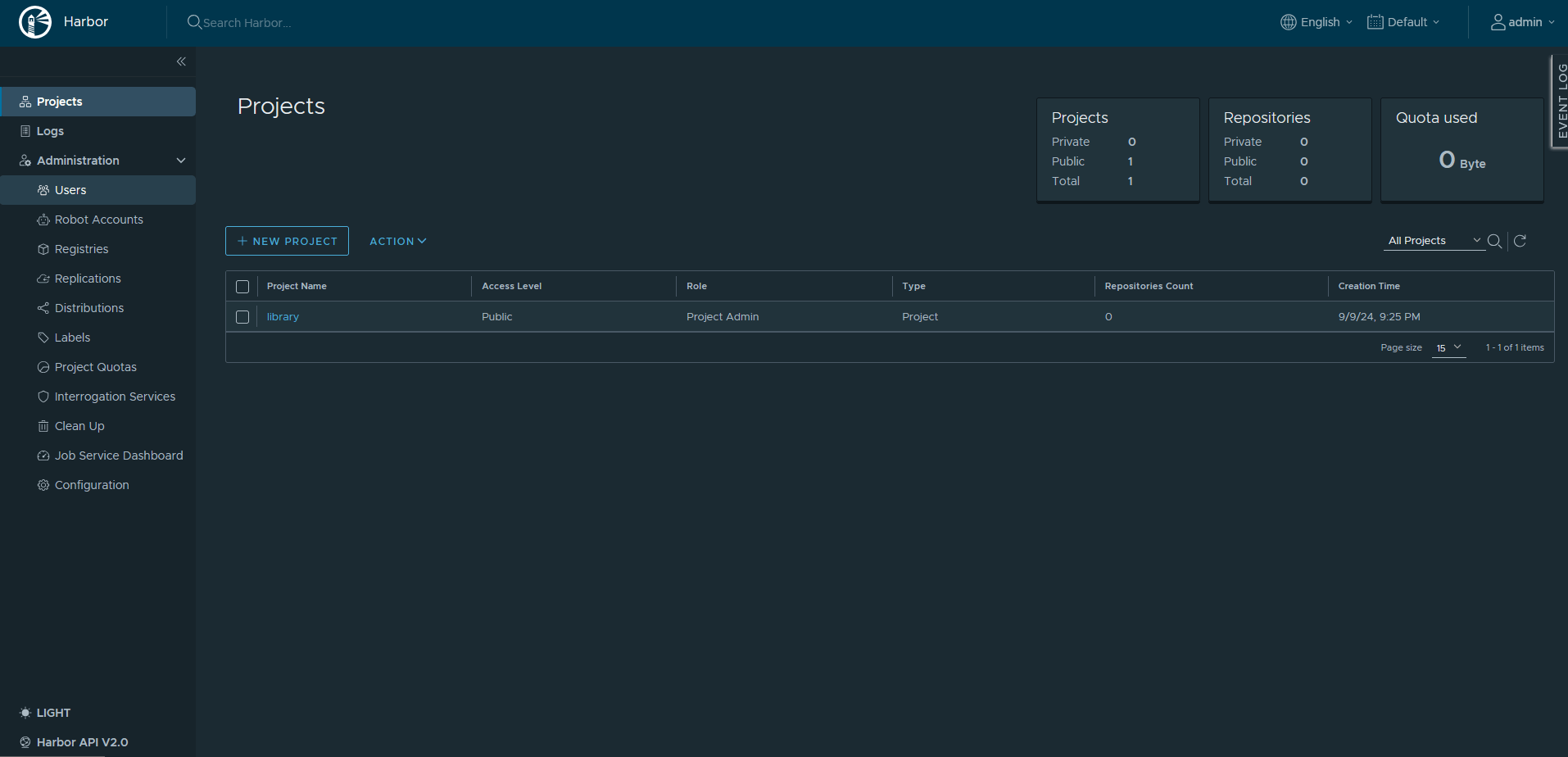
Firstly follow to the harbor server and sign-in with admin account, use bitnami as basic password.
Configure OAuth Authentication
In addition to internal authetication, harbor support different kinds of external as LDAP or OIDC, etc. In the current article we set up OAuth2 OpenID Connect + Microsoft EntraID. So you must have Microsoft EntraID tenant as least Free license. Using current method you do not need any external domain or a public IP address.
Harbor side
- Go to Configuration section under Administration and pick up OIDC from Auth Metod list.
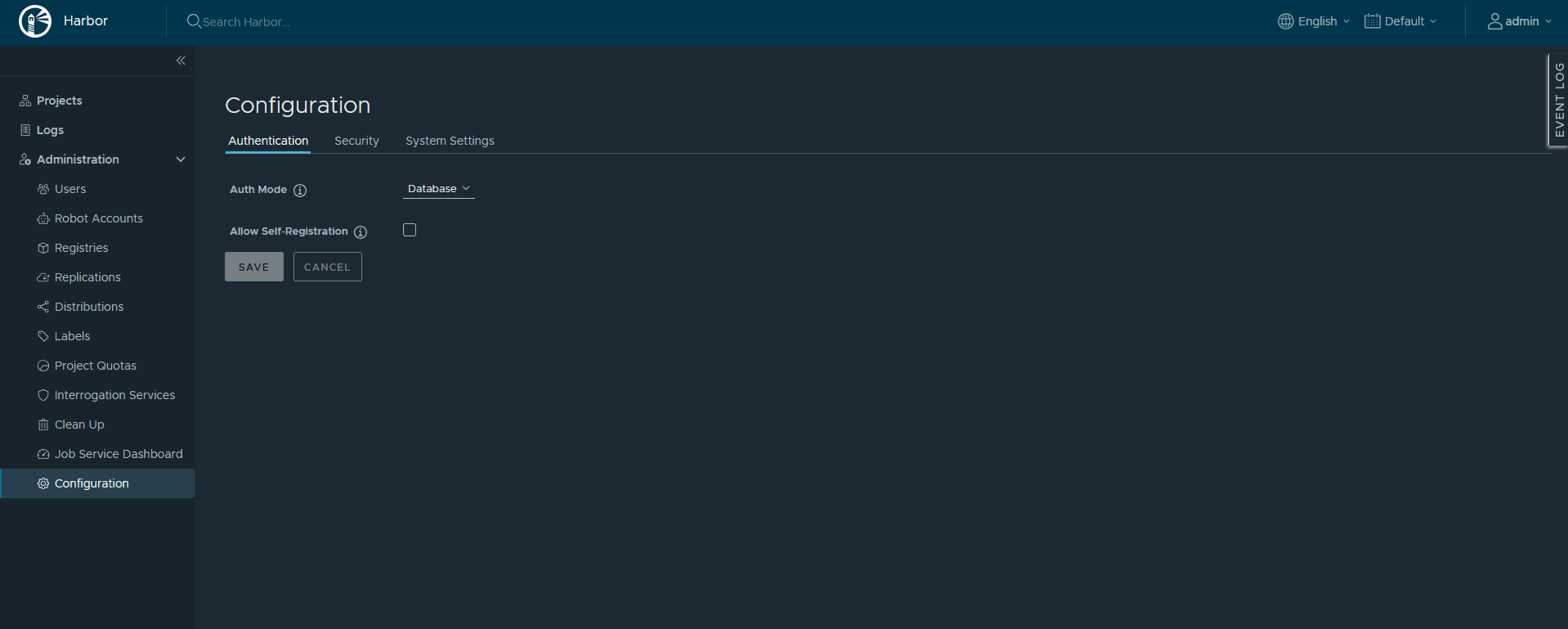
Notice Redirect URI at the botom of the page.
Azure side
- Once signed-in on Microsoft EntraID create a new App registartion
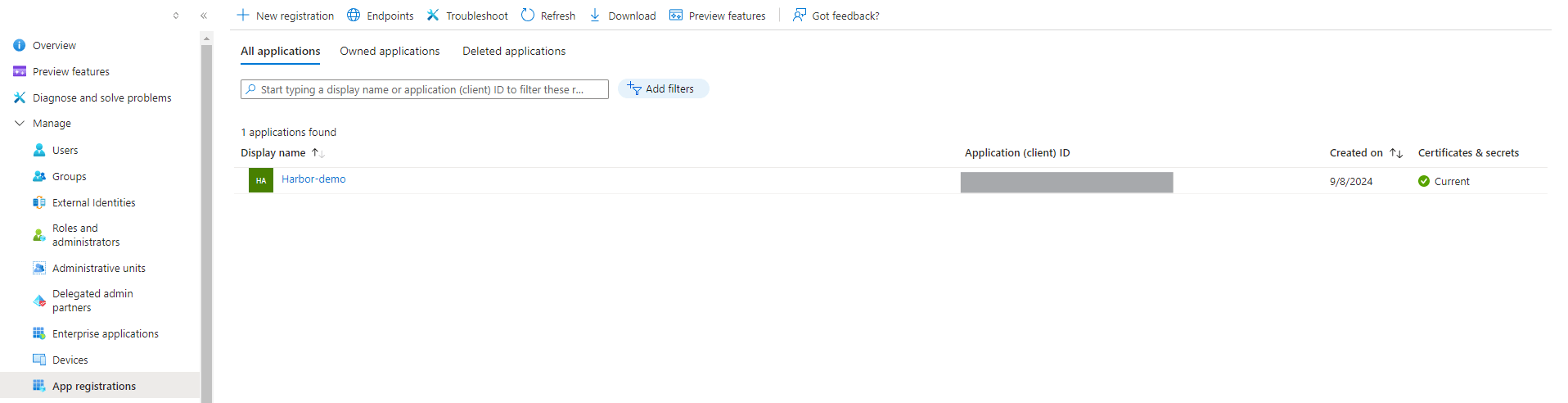
- Fill gaps Name and Redirect URI (http://localhost/c/oidic/callback)
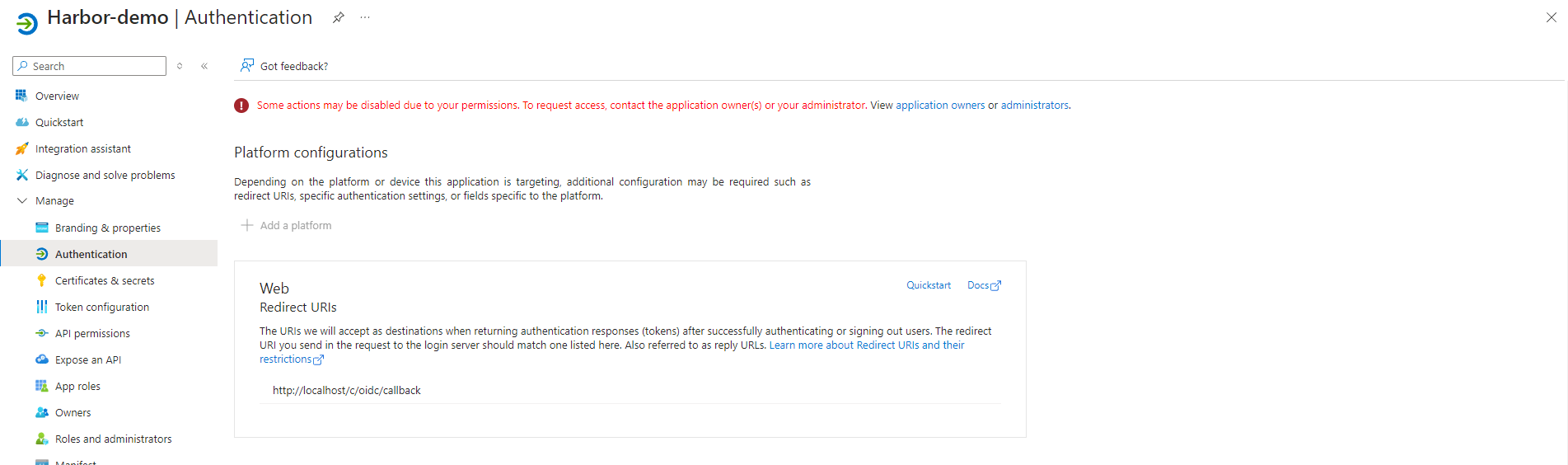
Create a new client secret for the app
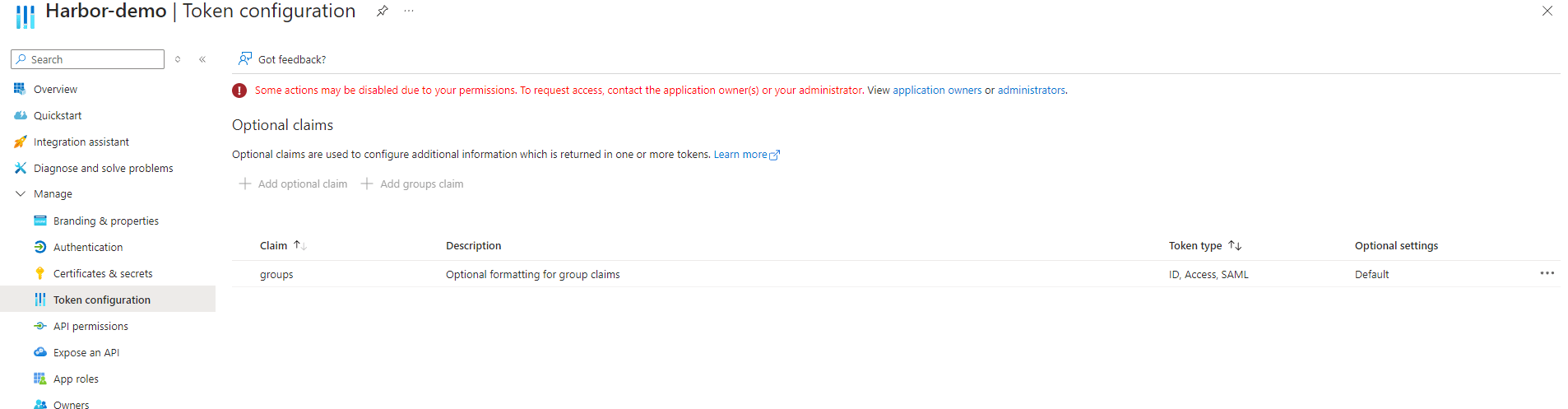
In the registred app, in the Token cofiguration add group claims as following
- Create a group or groups, which you want mapping to your Harbor service; and copy their ObjectID

Harbor side (again)
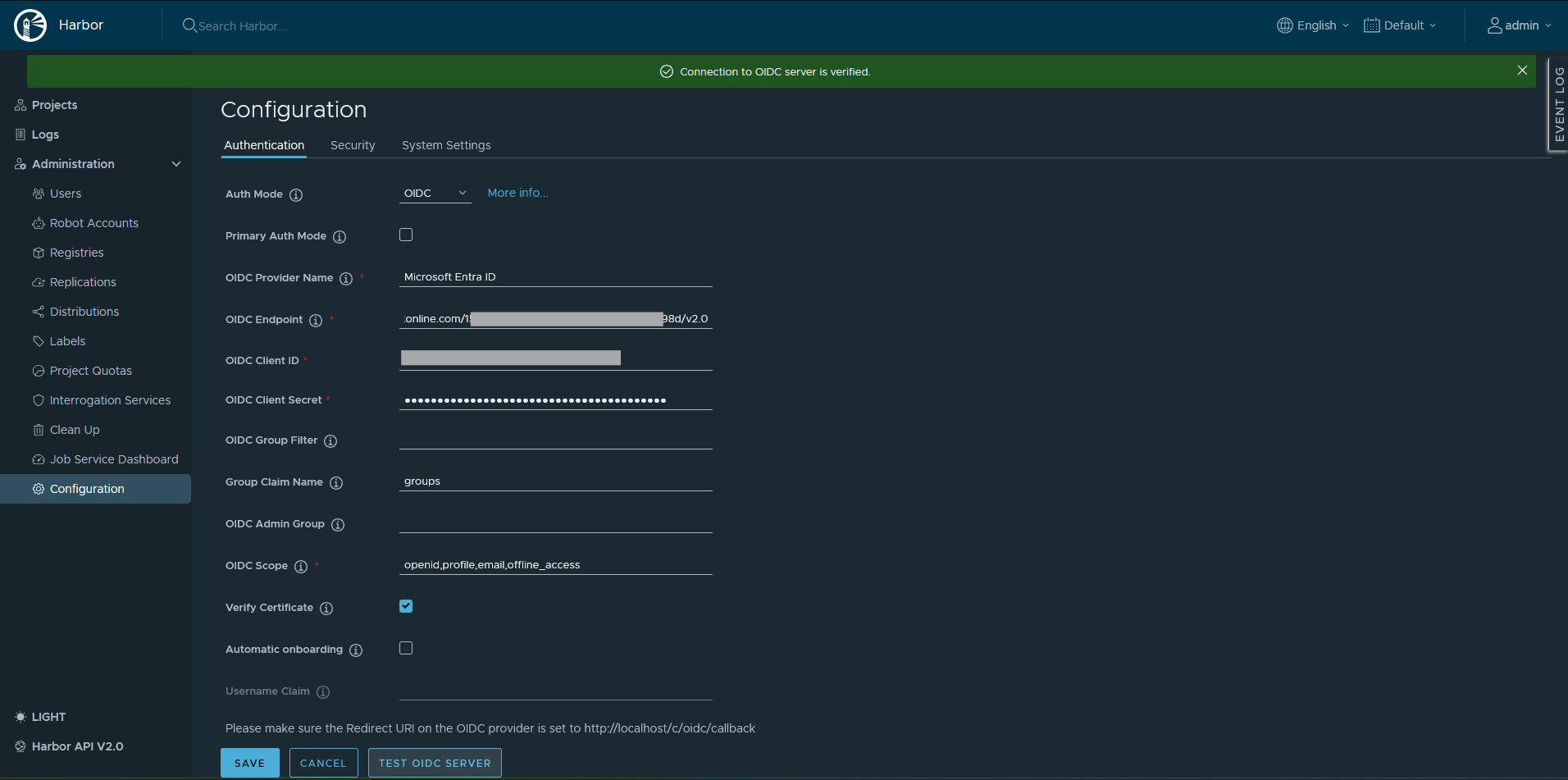
- Return to your local harbor Server and fill up required gaps as you see in the image bellow and press Save
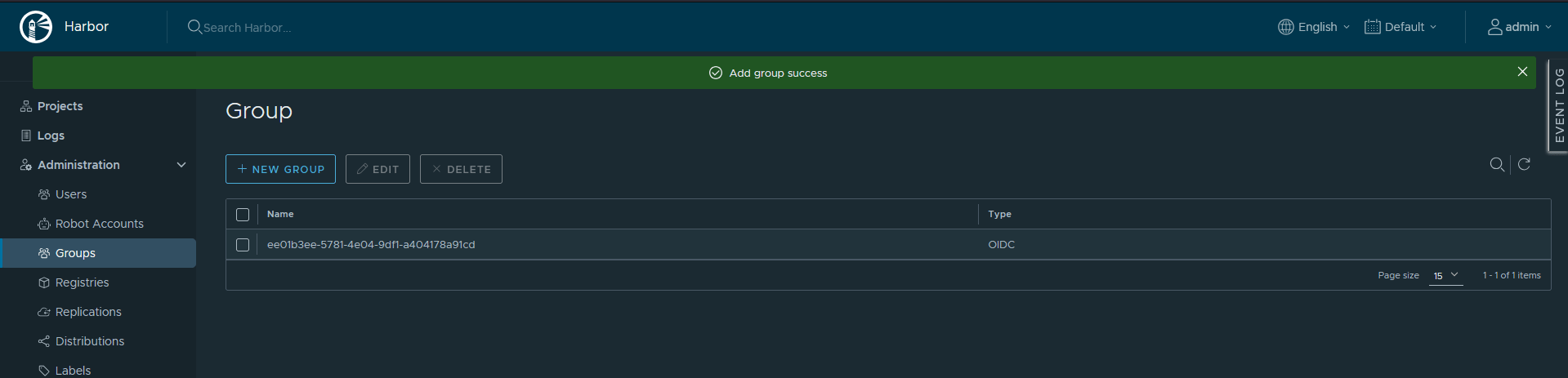
- Follow to Administration->Group push the +New Group button
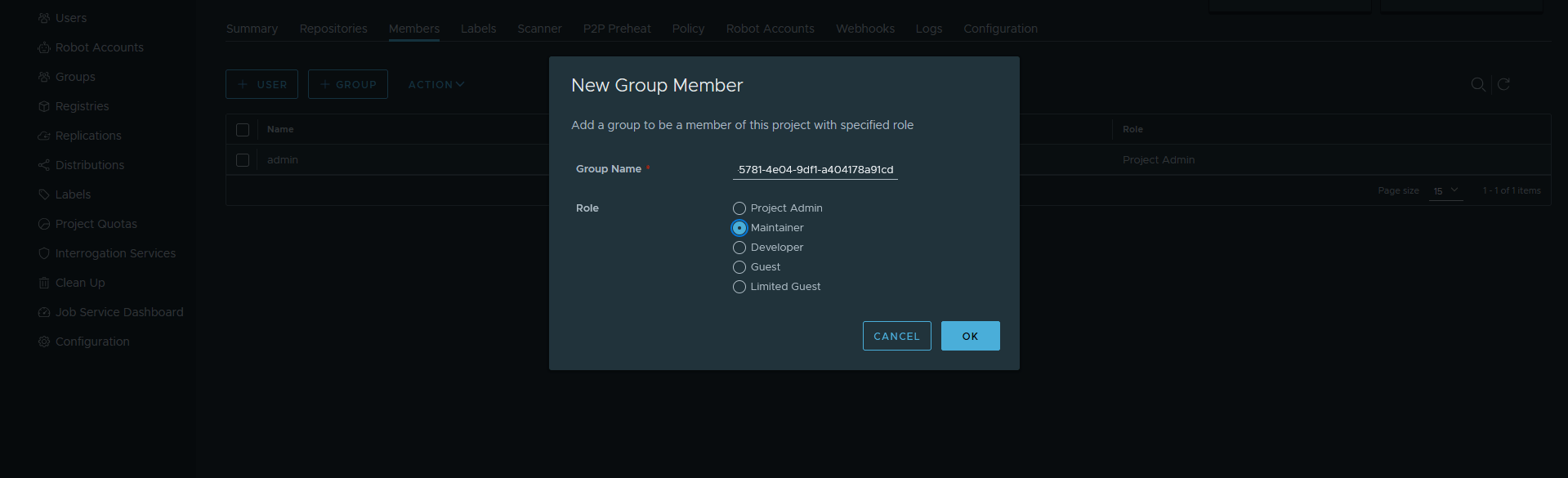
Fill in the group ObjectID and choose a role
User sign-n expirience
For sign-in to the harbor server over SSO use Login with Microsoft EntraID button
Ensure that the user is member of the targeted AD group
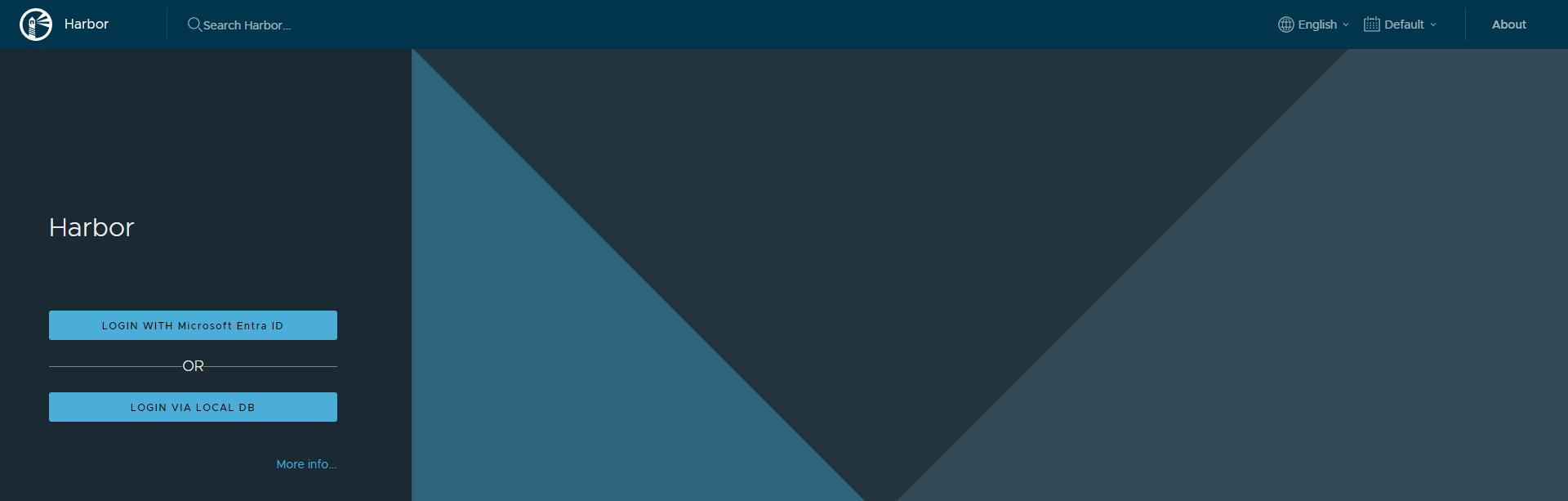
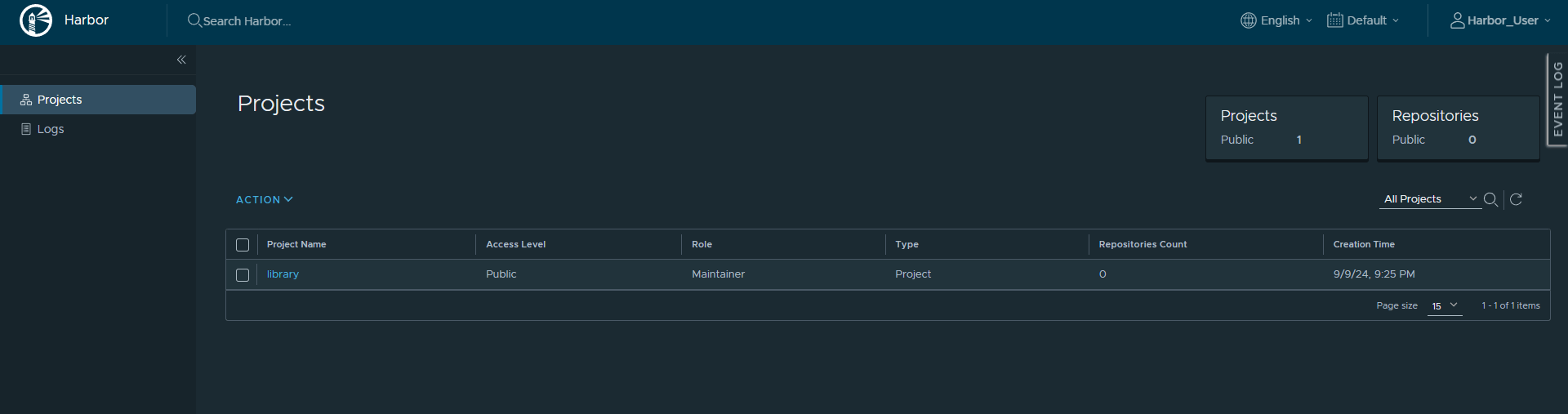
After successed sign-in to Microsoft account, you can complite harbor registration

Entered in the project press Push command, to be known in info.
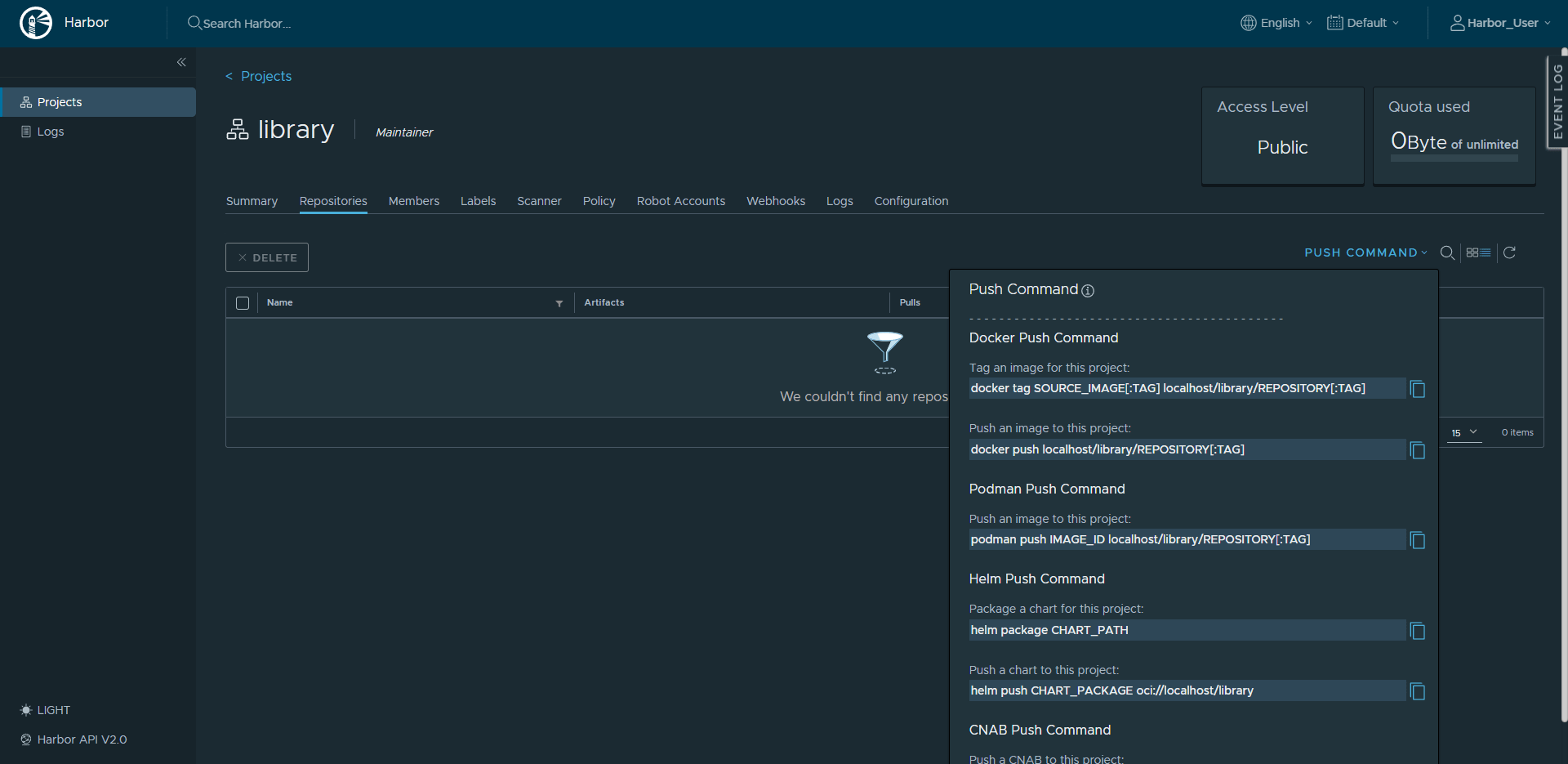
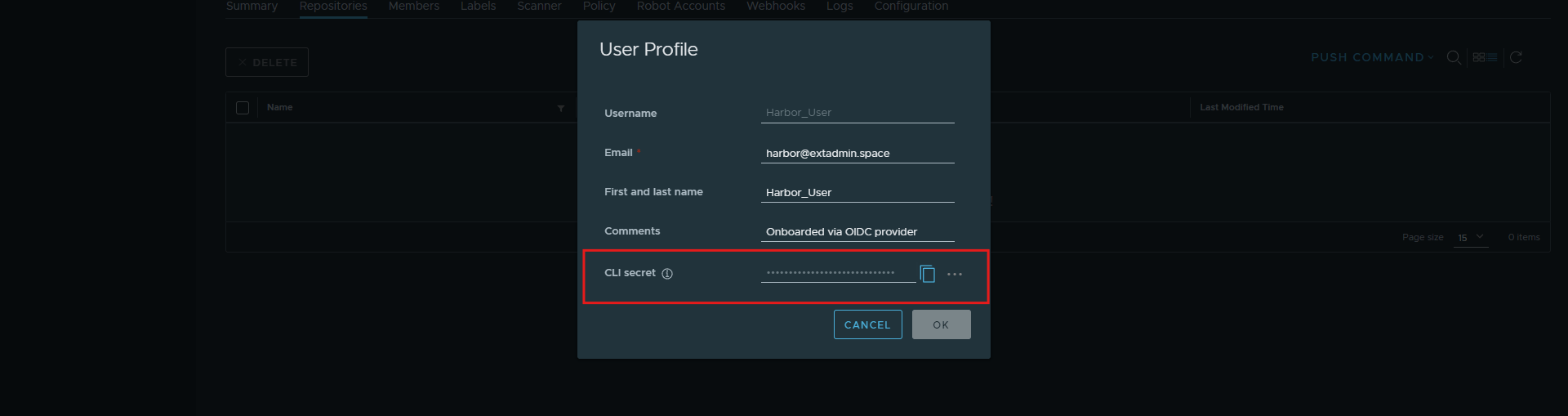
For authorization over Docker CLI use a client secret, you can find it in User Profile