
Igor Aleksandrov
Monday, July 22, 2024 | 5 minutes
Gitea - modern lightweight self-hosted git service
Intoduction
Gitea is a painless, self-hosted, all-in-one software development service. It includes Git hosting, code review, team collaboration, package registry, and CI/CD. It is similar to GitHub, Bitbucket and GitLab.
Gitea stands out as a lightweight and user-friendly Git service with a streamlined interface. It includes essential tools like issue tracking, pull requests, code review, and wiki pages. Notably, Gitea supports multiple authentication methods such as OAuth, LDAP, and two-factor authentication.
Its primary advantage lies in its self-hosting capability, allowing users to install it on their own servers. This feature grants full control over code and data, appealing particularly to organizations prioritizing enhanced security and privacy compared to cloud-based Git hosting services.
In summary, Gitea offers robust Git management capabilities through a straightforward interface, comprehensive features, and the flexibility of self-hosting, ensuring both ease of use and heightened control over data and security.
Deploy Infrastructure
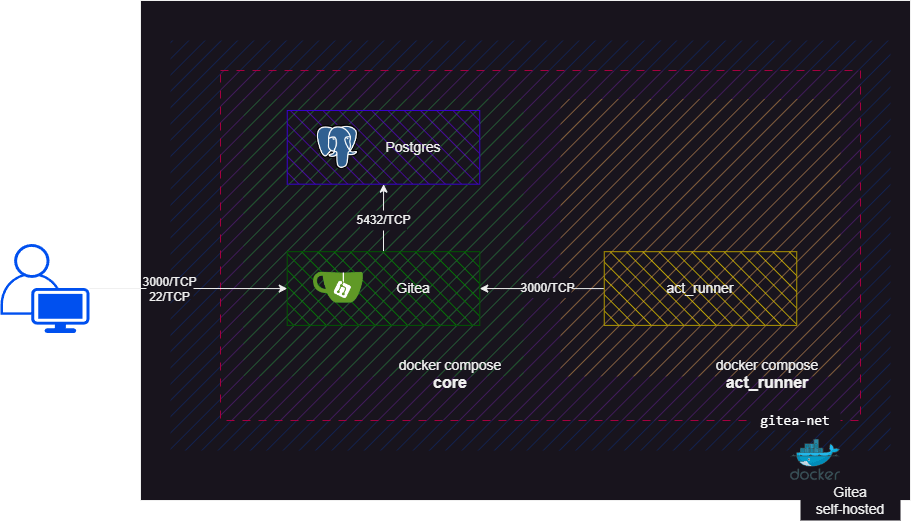
In the article we will use Docker compose as platform for infrastructure. There will be a Gitea server (gitea/gitea), a Postgres 14 (postgres:14) and Gitea Act runner (gitea/act_runner). Additionaly, you need a Microsoft EntraID tenenant for OAuth authentication.
All necessary files you can find here
Struct of demo:
..
|-- docker-compose.core.yaml
|-- docker-compose.act_runner.yaml
|-- act_runner.env
|-- gitea.env
|-- pgsql.env
Installation Gitea server
Create project folder and copy demo files form repository
Create two folders data and gitea in a convenient manner.
Define variables in pgsql.env
pgsql.env
POSTGRES_USER=gitea
POSTGRES_DB=gitea
POSTGRES_PASSWORD=GiTEA123
- Edit gitea.env and set variables
gitea.env
USER_UID=1000
USER_GID=1000
GITEA__database__DB_TYPE=postgres
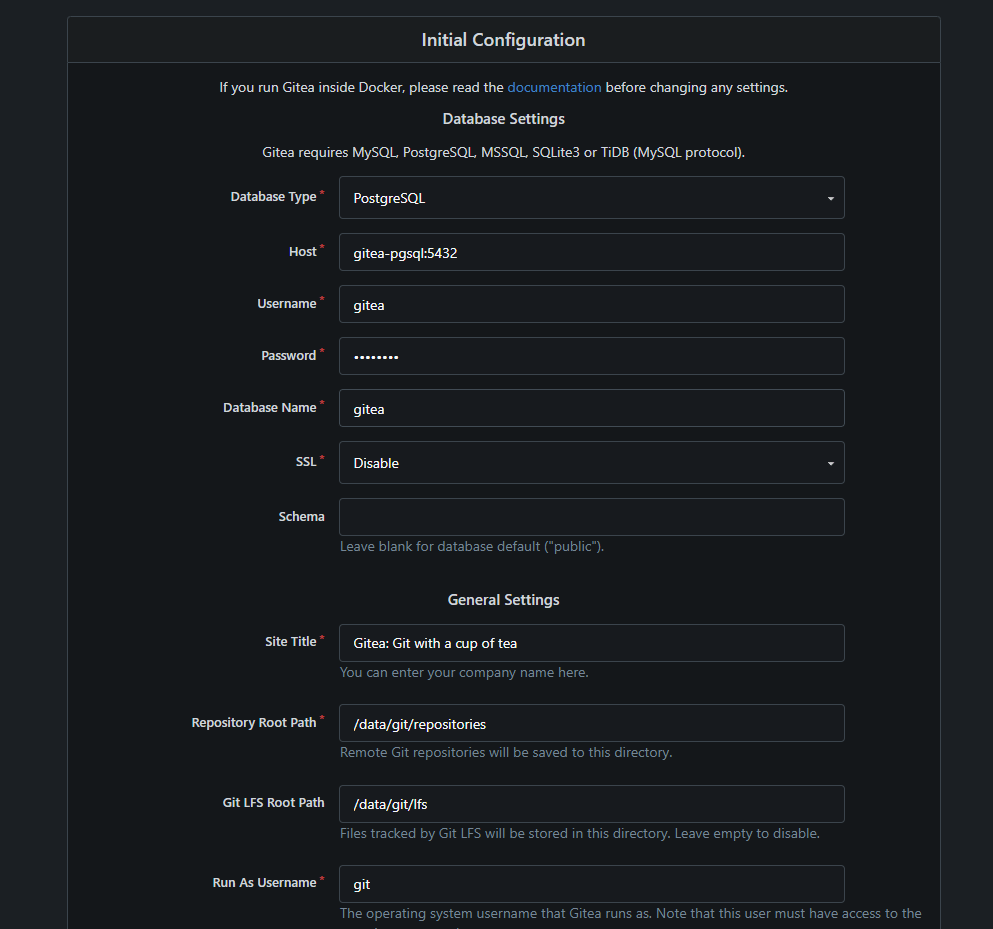
GITEA__database__HOST=gitea-pgsql:5432
GITEA__database__NAME=gitea
GITEA__database__USER=gitea
GITEA__database__PASSWD=GiTEA123
- Execute
docker compose -f ./docker-compose.core.yaml up -dto install Gitea server
docker-compose.core.yaml
name: gitea-demo

services:
  db:
    container_name: gitea-pgsql
    image: postgres:14
    restart: always
    env_file:
      - pgsql.env
    networks:
      - gitea
    volumes:
      - postgres-db-volume:/var/lib/postgresql/data


  server:
    container_name: gitea-server
    image: gitea/gitea
    restart: always
    env_file:
      - gitea.env
    networks:
      - gitea
    volumes:
      - ./gitea:/data
      - /etc/timezone:/etc/timezone:ro
      - /etc/localtime:/etc/localtime:ro
    ports:
      - "3000:3000"
      - "22:22"
    depends_on:
      - db

volumes:
  postgres-db-volume:

networks:
  gitea:
    name: gitea-net
Attention! It will expose 3000/TCP and 22/TCP ports, if you need use different ports you have to change their in docker-compose.core.yaml. Moreover, if you want to have extrnal access to your self-hosted Gitea server, configure your firewall.

Preparation Act_runner (Gitea agent)
Gitea includes Gitea Actions, a built-in CI/CD solution that utilizes Act_runner for executing workflows. In this step, we prepare Act_runner as a Docker container. It will be installed after the Gitea server is configured and a runner token is created.
Generate config.yaml file, execute
docker run --entrypoint="" --rm -it gitea/act_runner act_runner generate-config > config.yaml, as result you get config.yaml in root of the project folder.Check and edit params in act_runner.env
act_runner.env
CONFIG_FILE="/config.yaml"
GITEA_INSTANCE_URL="http://gitea-server:3000"
GITEA_RUNNER_REGISTRATION_TOKEN="SET_AFTER_SERVER_IS CONFIGURED"
GITEA_RUNNER_NAME="main_runner"
GITEA_RUNNER_LABELS="gitea-demo:runner"
Notice that you have to add volume /var/run/docker.sock:/var/run/docker.sock
docker-compose.act_runner.yaml
name: gitea-ar

services:
  runner:
    image: gitea/act_runner
    container_name: gitea-ar
    env_file:
      - ./act_runner.env
    volumes:
      - ./config.yaml:/config.yaml
      - ./data:/data
      - /var/run/docker.sock:/var/run/docker.sock
    networks:
      - gitea
networks:
  gitea:
    name: gitea-net
    external: true
Configuration Gitea
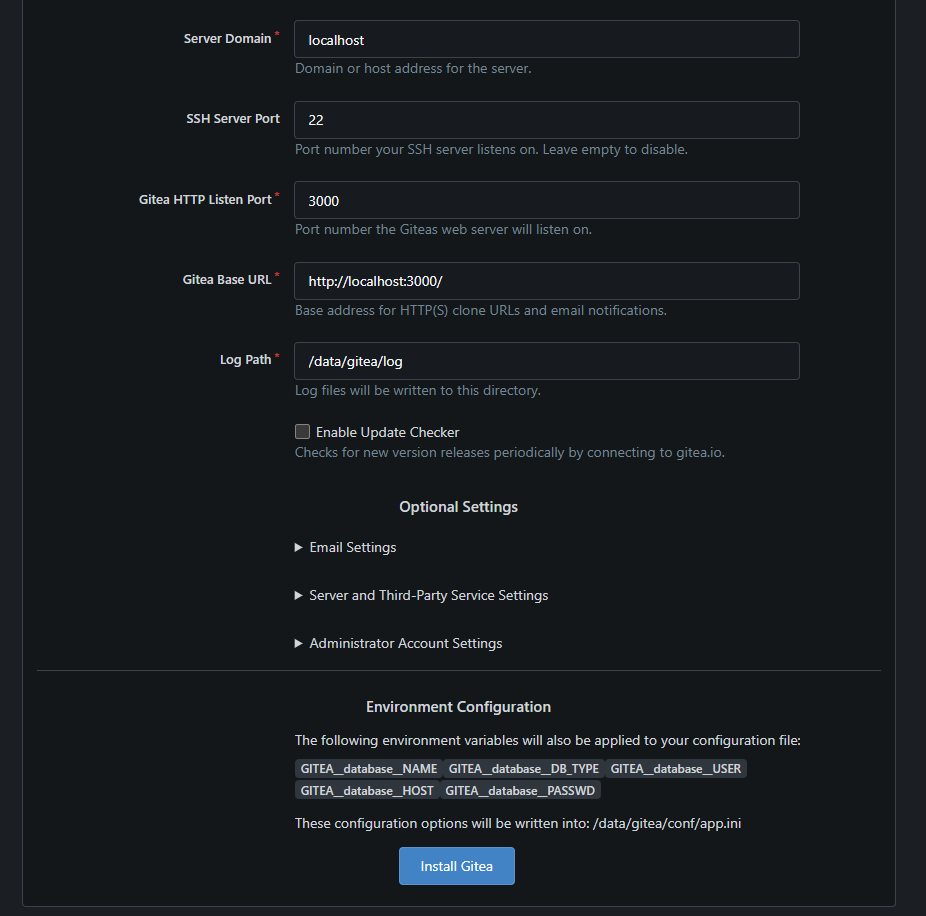
Firstly follow to the Gitea server you have to finalize installation
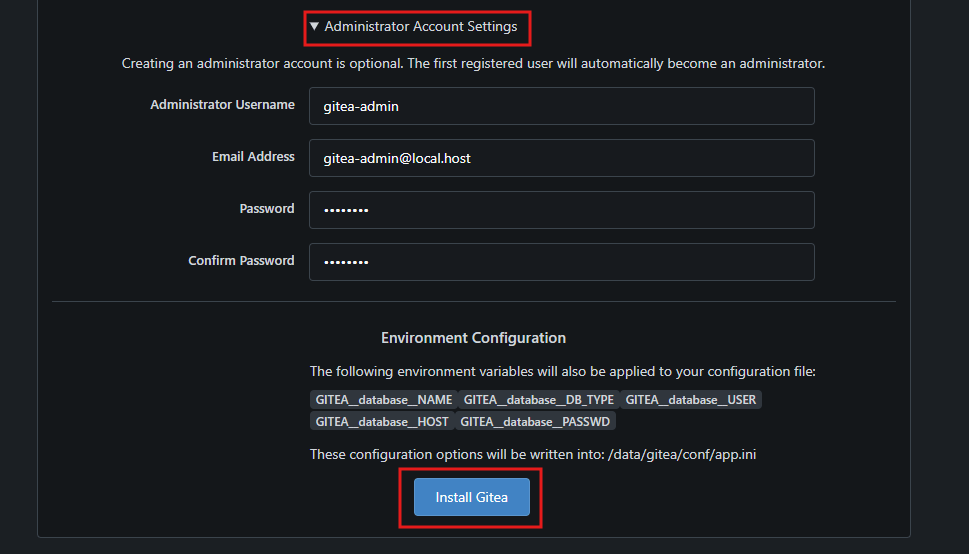
In the Administrator Account Setting fill requested gaps and press Install Gitea
Create an organization
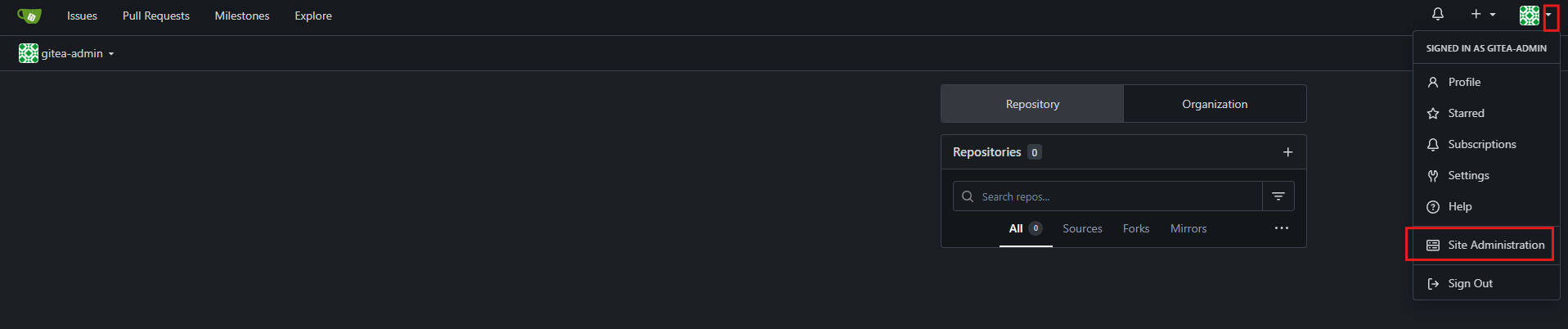
- Follow to Site Administration
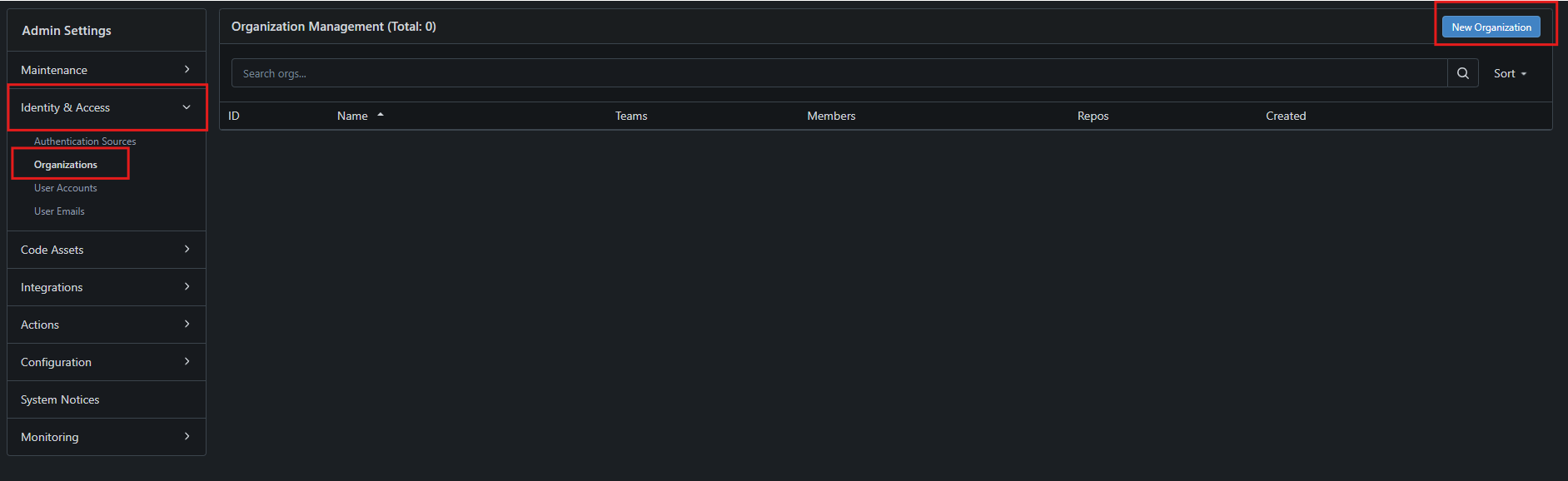
- In Identity & Access section go for Organizations and click New Organization
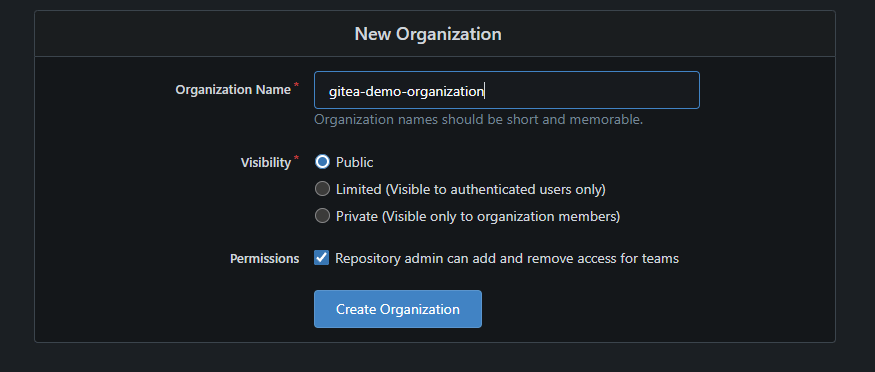
- Type Organization Name as gitea-demo-organization choose Visibility and press Create Organization
Create Teams
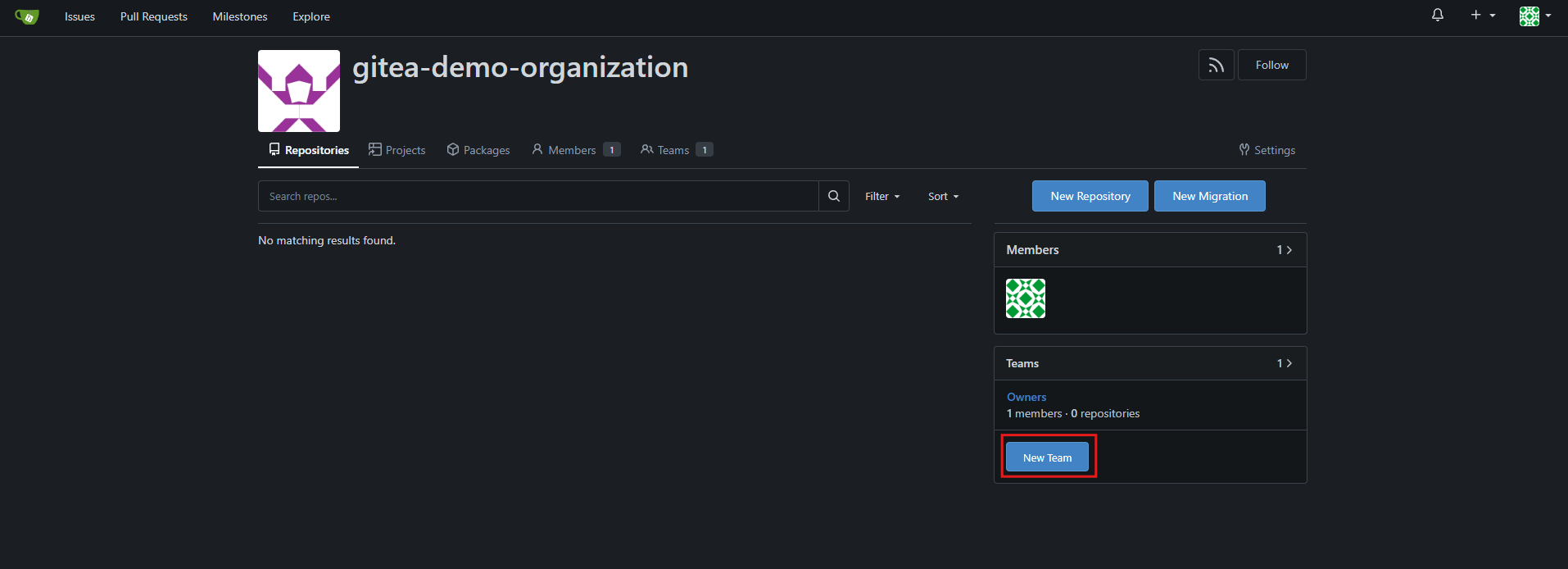
- On the Organization page find and press View ORG_NAME

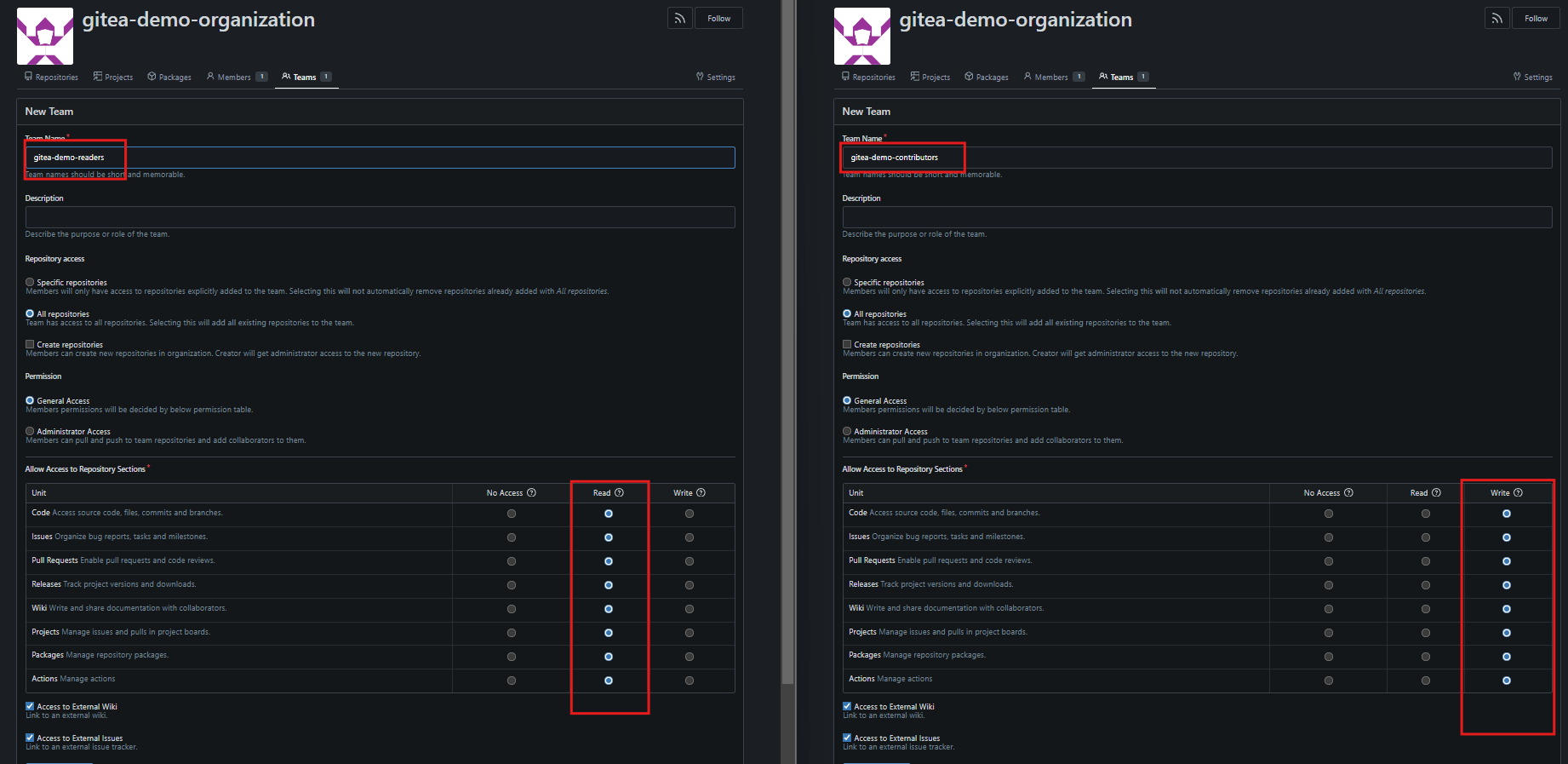
- Using button New Team create two teams gitea-demo-readers and gitea-demo-contributors
Install an Act_runner
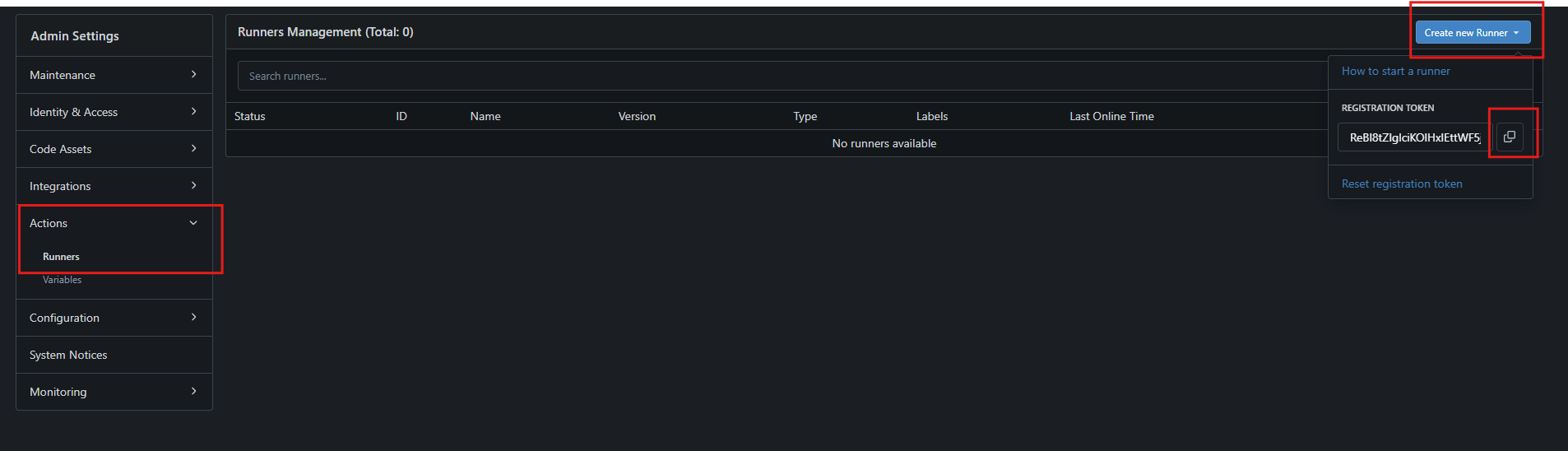
- Before inastallation act_runner go to Site Administration -> Actions -> Runner press Create new runner and copy the token.
- Add the token to act_runner.env as the value of GITEA_RUNNER_REGISTRATION_TOKEN param.
Notice that you can add runner on the different levels: server, organization, user. For change runner access level, generate token from User settings or Organization settings
- Execute the command
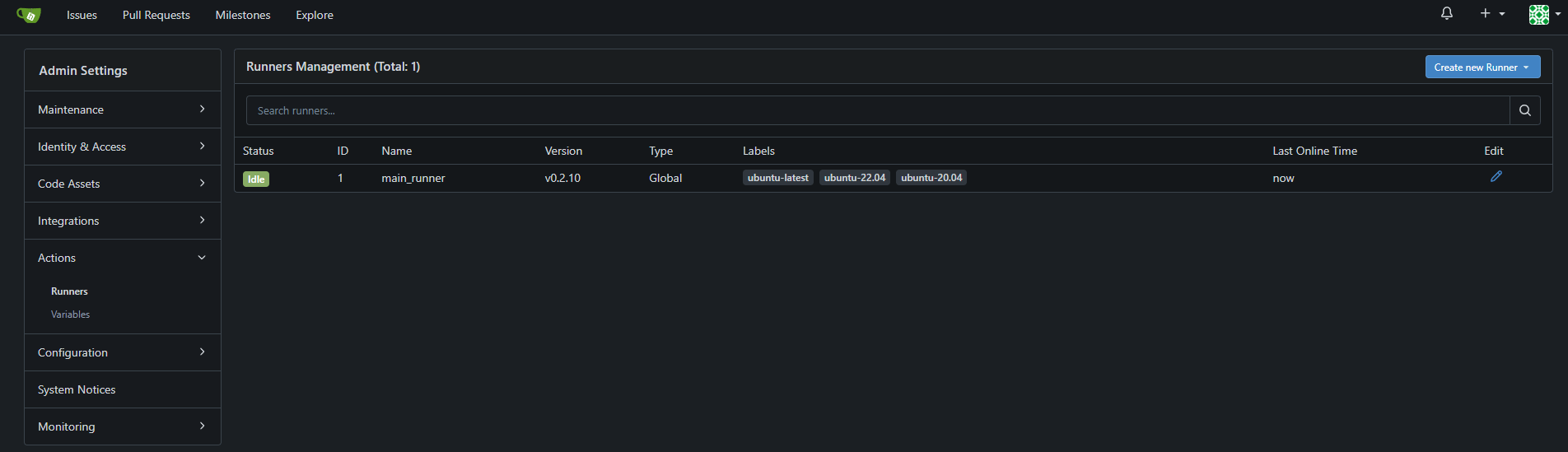
docker compose -f ./docker-compose.act_runner.yaml up -d. In a moment, a new runner will be showed on the runners page.
Configure OAuth Authentication
In addition to internal authetication, Gitea support different kinds of external as LDAP or OAuth, etc. In the current article we set up OAuth2 OpenID Connect + Microsoft EntraID. So you must have Microsoft EntraID tenant as least Free license, however if you want to map AD groups to teams, choose a Premium one. Using current method you do not need any external domain or a public IP address.
Azure side
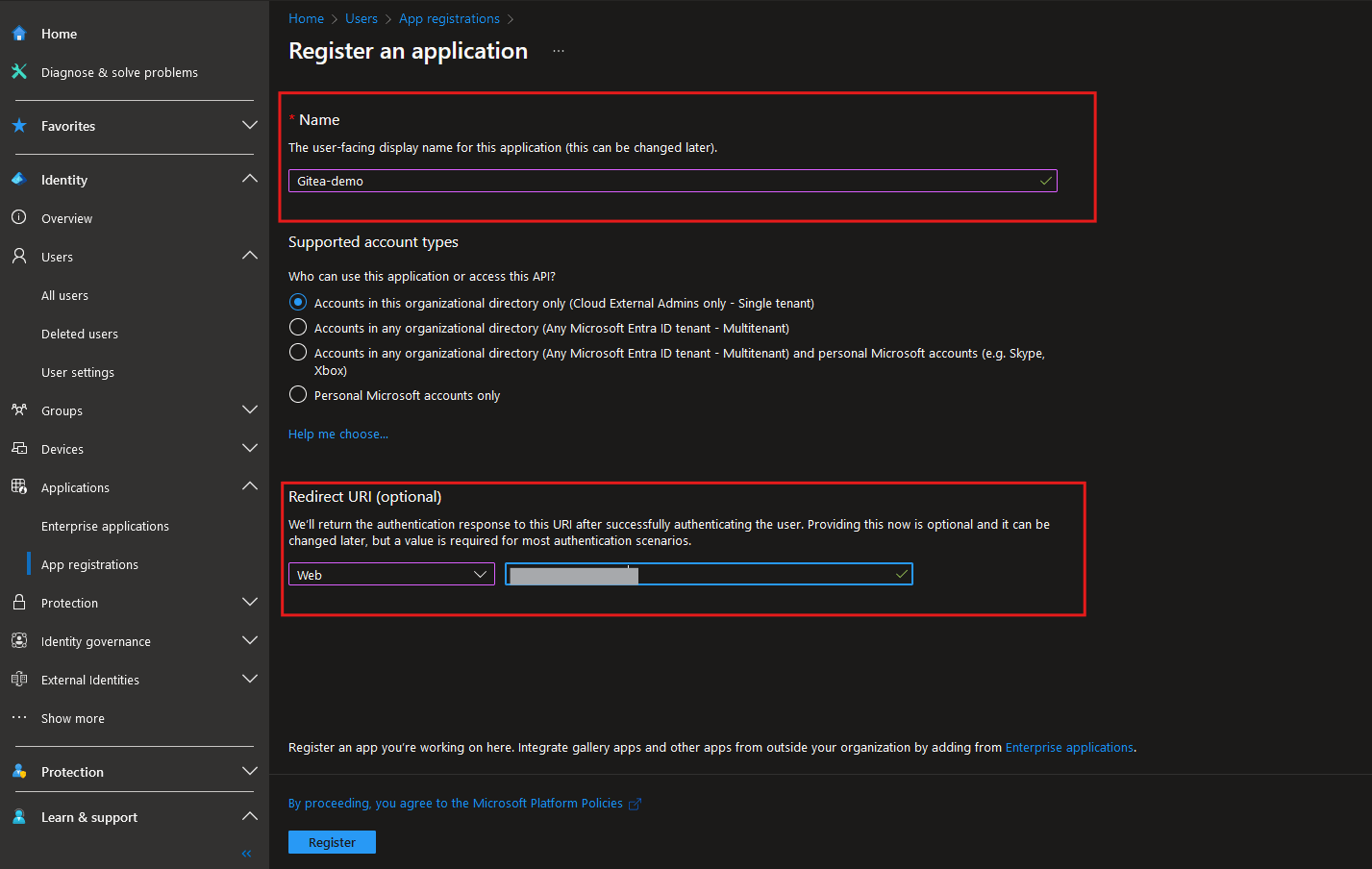
- Once signed-in on Microsoft EntraID create a new App registartion
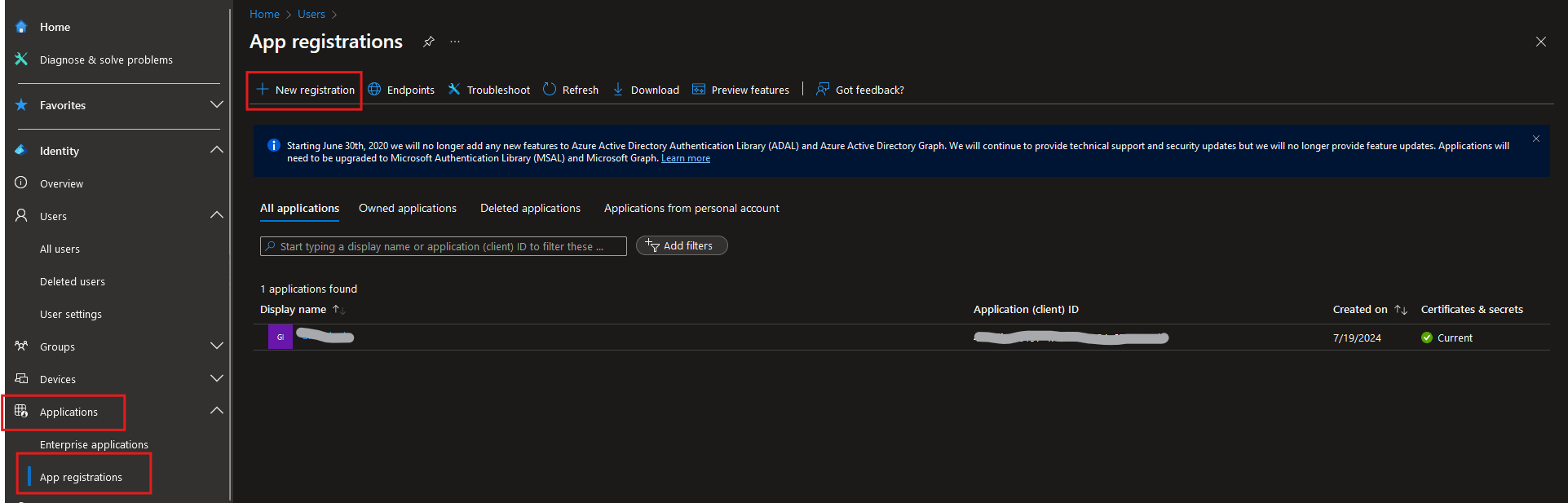
- Fill gaps Name and Redirect URI (http://localhost:3000/user/oauth2/Microsoft%20EntraID/callback)
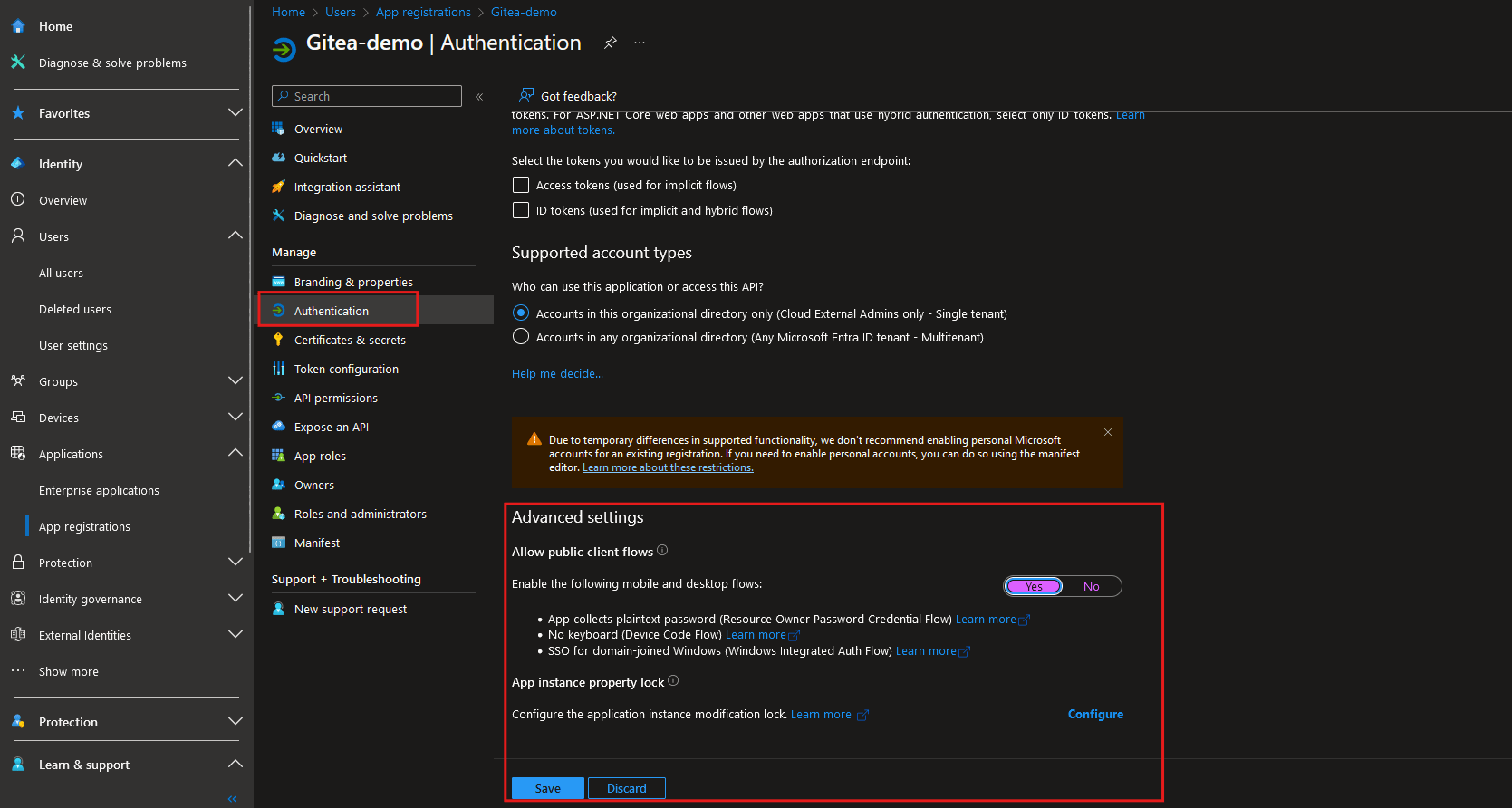
- In the registred app, in the Authetication section, enable public client flow
Create a new client secret for the app
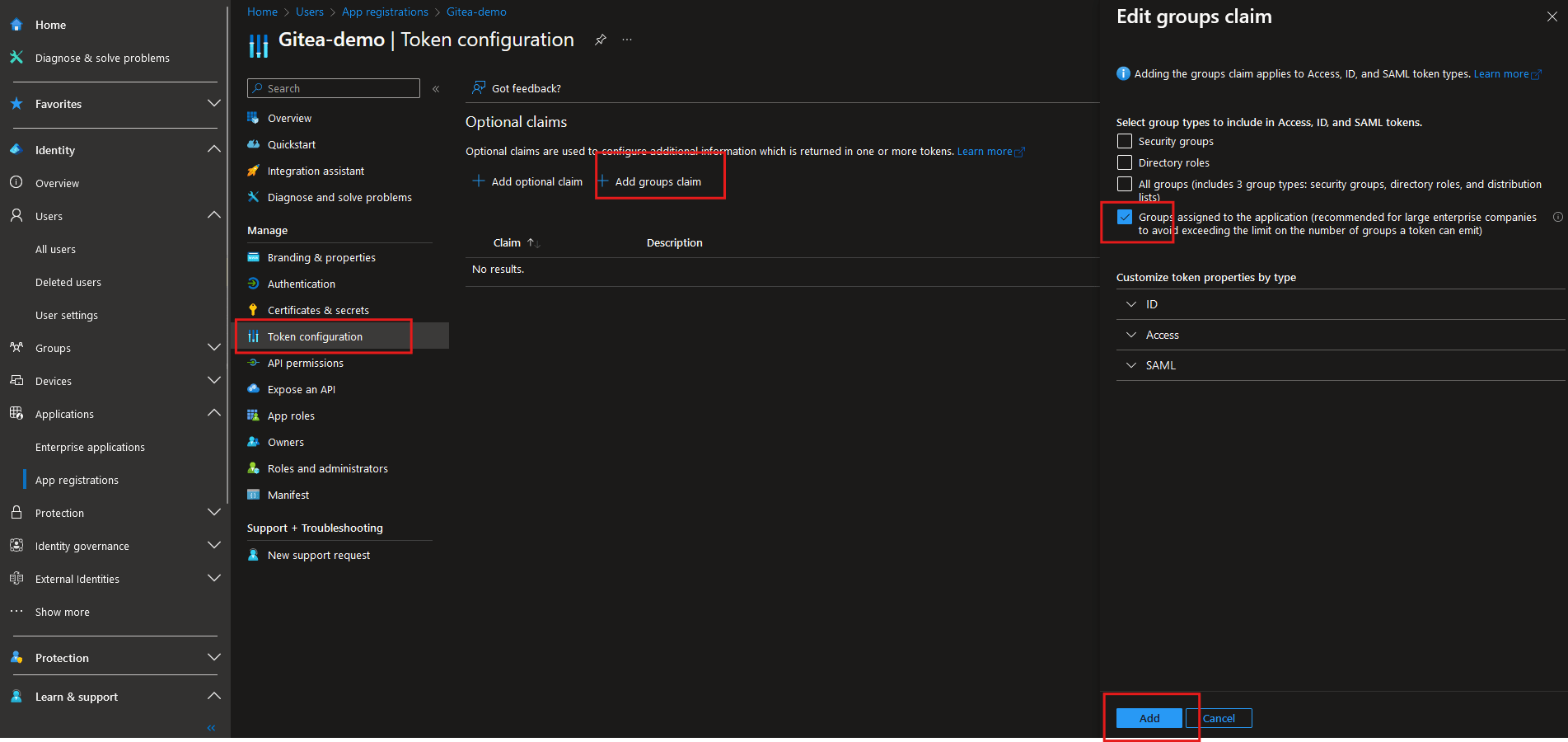
In the registred app, in the Token cofiguration add group claims as following
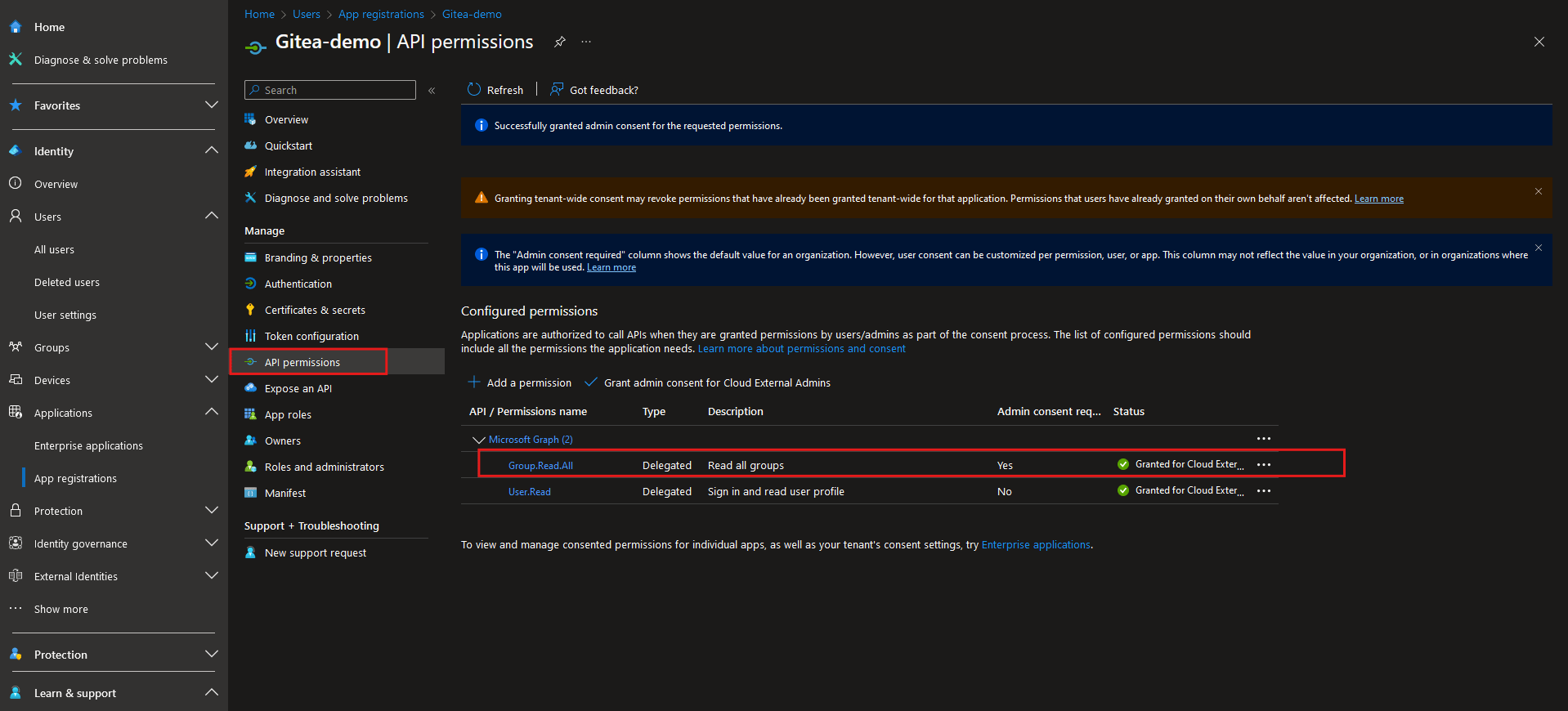
- In the registred app, in the API permissions section, add and deligate
Group.Read.Allpermission. Also you have to grant admin consent.
In the registred app, copy OpenID Connect metadata document endpoint
In the Enterprise Application created, in Properties, change the Assignment requirement option to YES.
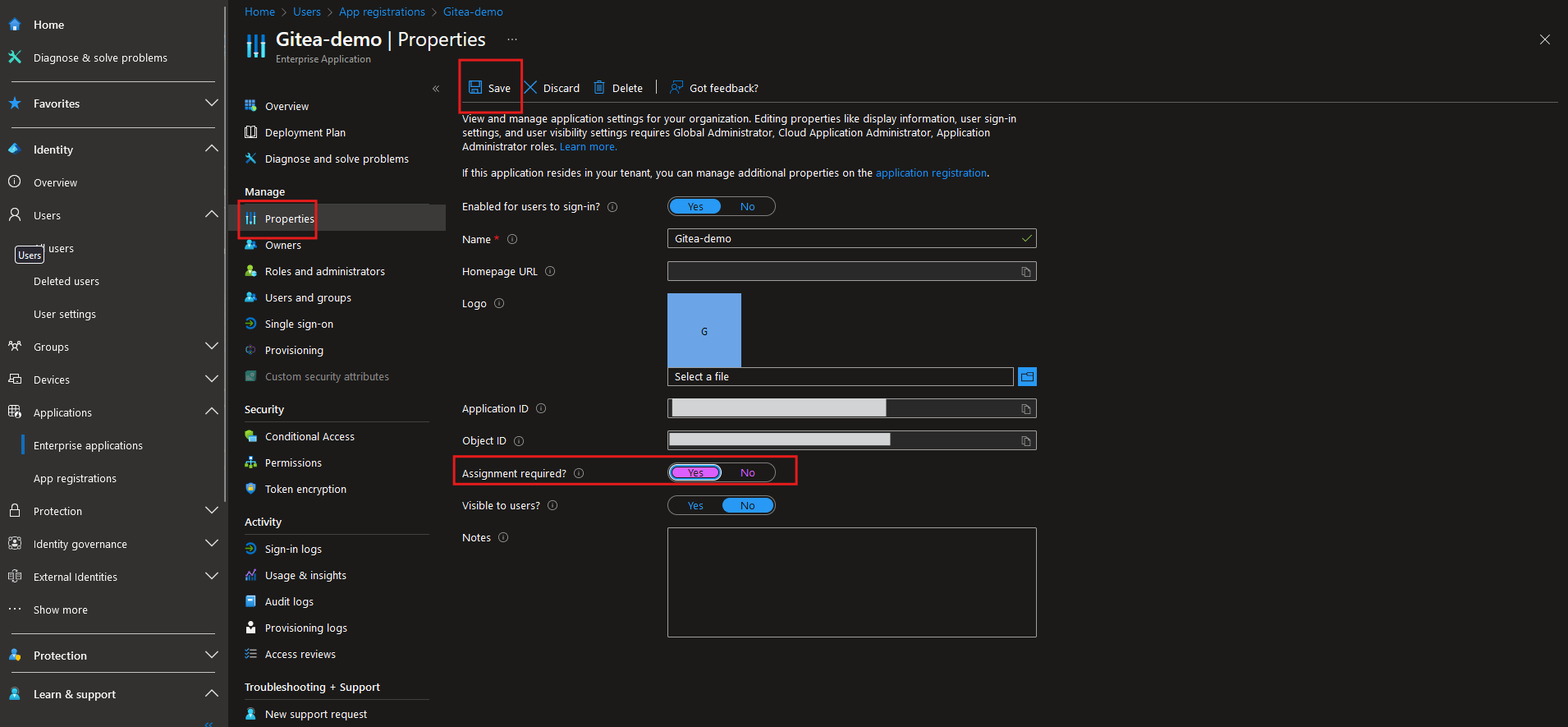
- Assign users and groups to app-roles for your application in Users and groups section
Server side
Return to your local Gitea Server and follow to Site Administration, in the Identety & Access section create a new one.
Select Autentication Type as OAuth, and type Name.
Select OpenID Connect in Ouath2 Provider
Client ID is equal Aplication ID of created Azure App registration, there is Client Secret too.
OpenID Connect Auto Discovery URL is OpenID Connect metadata document endpoint of the registred app.
In Additional Scopes you can add openid email profile
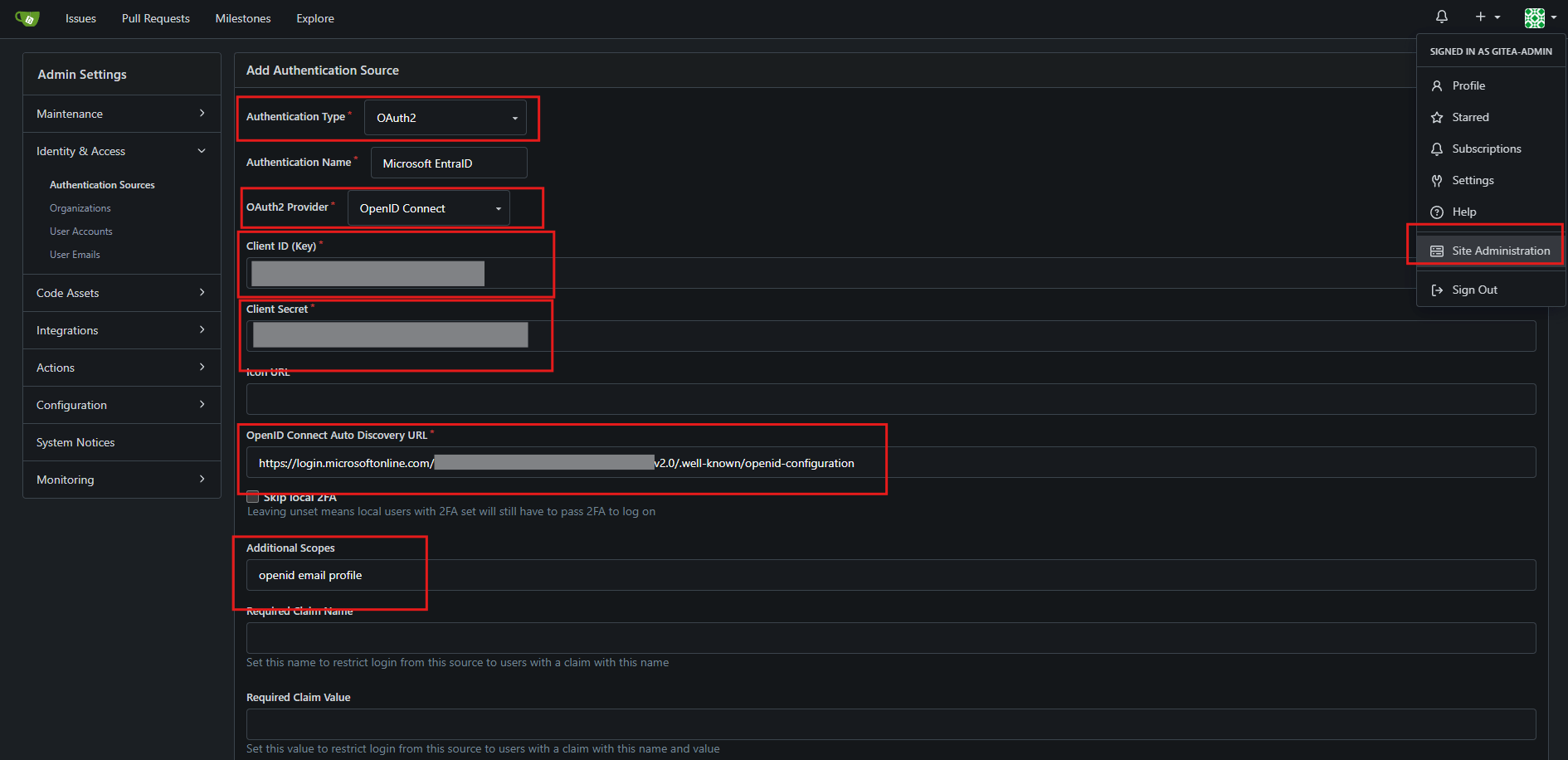
- For group mapping add groups to Claim name providing group names for this source. and configure Map claimed groups to Organization teams.
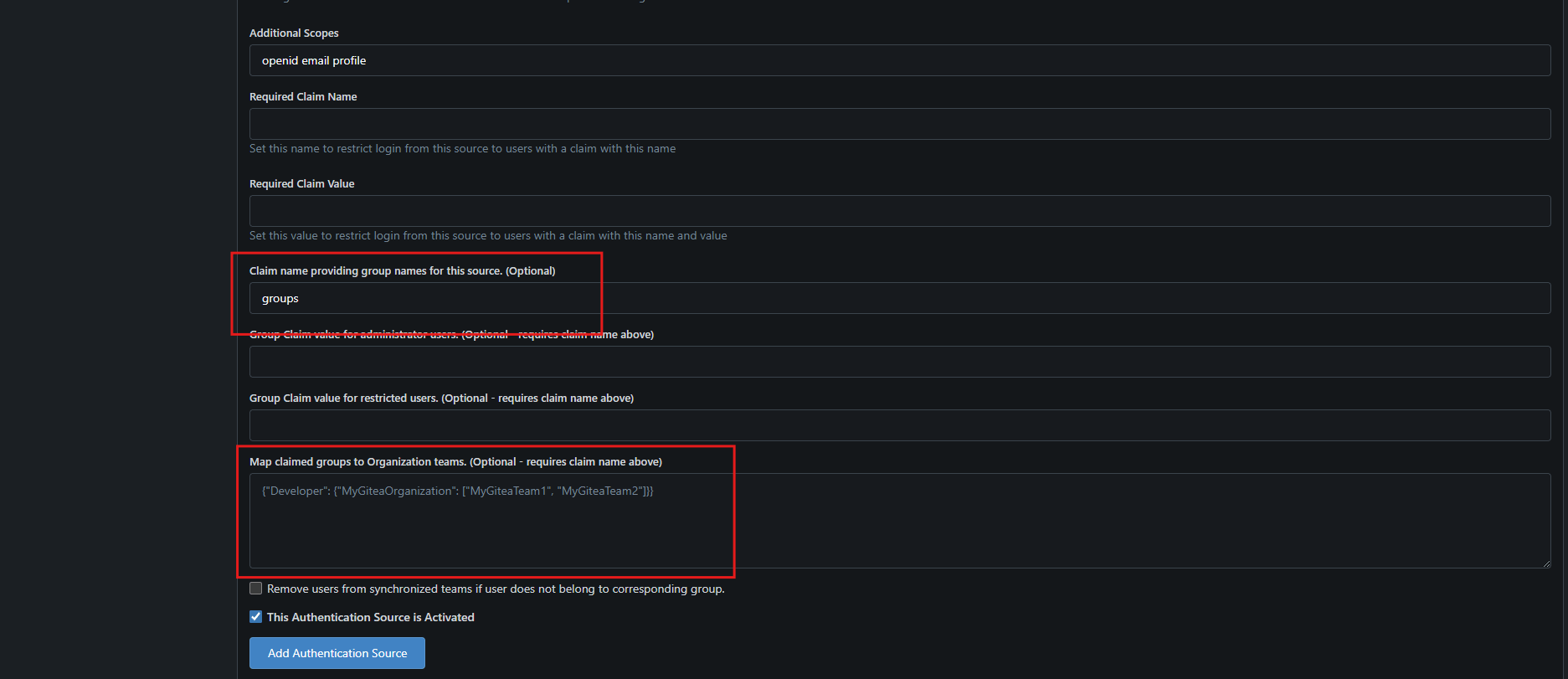
- Click on Add Authentication Source button.
User sign-n expirience
For sign-in to the Gitea server over SSO use Sign in with Microsoft EntraID button
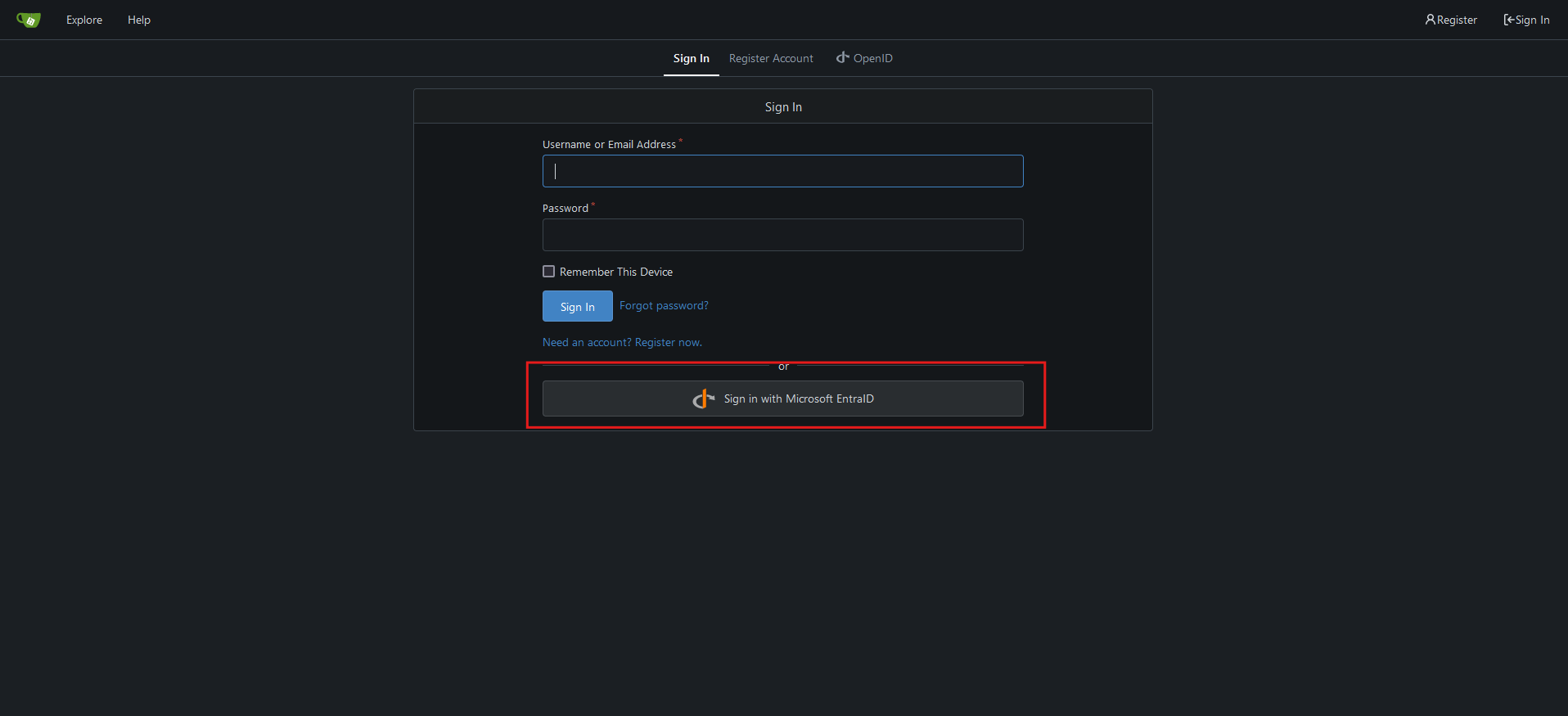
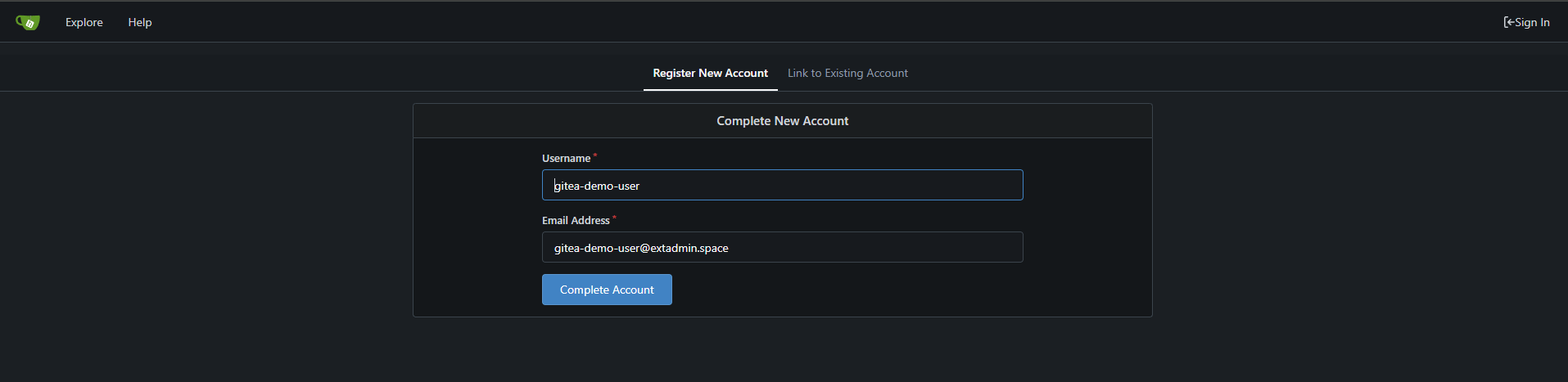
After successed sign-in to Microsoft account, you can complite Gitea registration
Conclusion
Gitea is an effortless, self-hosted software development service that encompasses Git hosting, code review, team collaboration, package registry, and CI/CD capabilities. Released under the MIT license, it’s designed to be lightweight, user-friendly, and extremely customizable, catering to small teams and large organizations alike. It support almost all capabilities of modern git system.